Интерфейс Unity Editor
Editor interface Unity has a flexible, modular user interface. If you’ve never used the Unity Editor before, refer to this quick overview of the main windows.
The Editor’s main windows
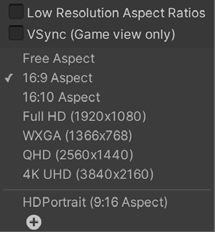
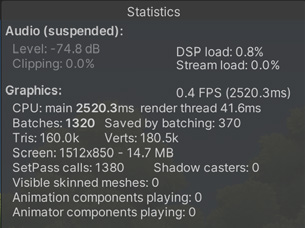
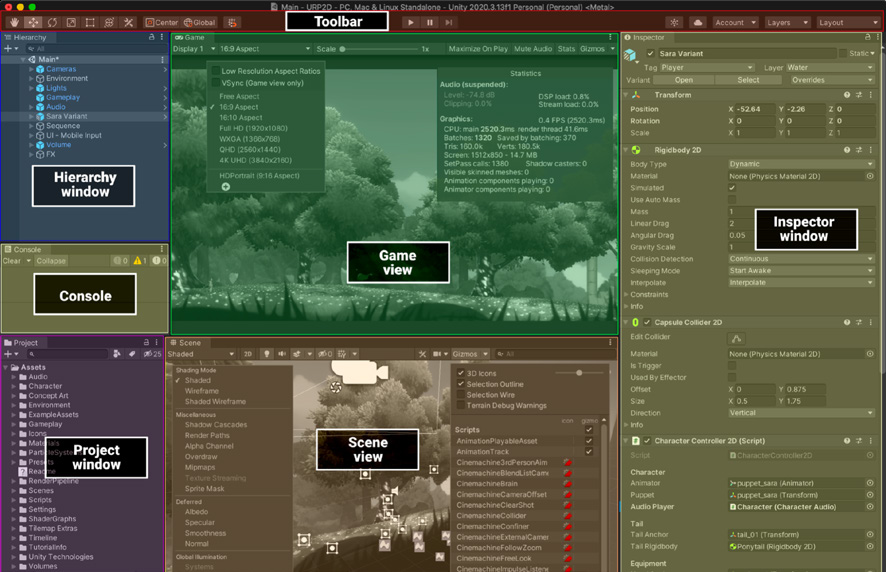
The main windows Game view: This previews the game’s main camera and how a player will interact with the game. This includes the Rendering statistics window in the top right, which shows graphics and audio stats to help you optimize your application. In the top left, Aspect Ratio allows you to preview multiple screen resolutions or define your own target resolution.
Rendering statistics
Aspect ratio
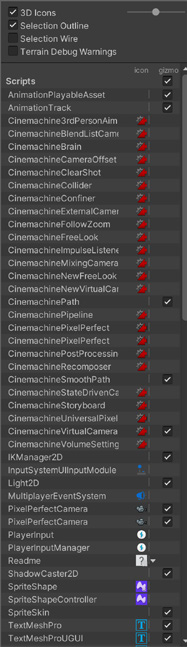
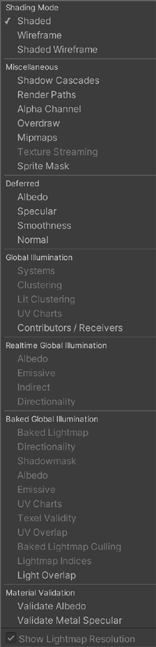
Scene view: This view shows the objects that comprise each scene. You will primarily work here in the Editor to place models, lights, physics bodies, and so on. Use the control bar to change the Draw Mode, useful for troubleshooting and quick diagnostics. The Gizmos menu controls icons and overlay graphics for certain GameObjects.
Draw Mode and Gizmos menus
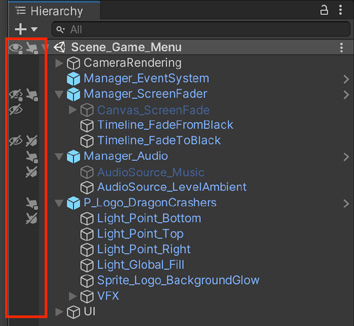
Hierarchy window: This window shows objects in the currently active scene and how they relate to one another in parent-child relationships. The Hierarchy includes a useful interface to override the visibility and pickability of objects in the Scene view. This UI does not affect the Game view. It’s designed to help you navigate complex scenes with a large number of GameObjects.
Scene visibility and pickability overrides Scene view
Inspector window: This shows properties and settings for the selected objects and offers powerful options for customization. Focused Inspectors can help you open an Inspector window for any specific GameObject, asset, or component to simplify comparison of gameplay variables or scene objects. Inspectors allow you to adjust them at runtime without needing to go into the code each time, making playtesting more interactive and facilitating a faster workflow. Project window: Unity stores all assets that create the game (Prefabs, Textures, models, animations, scripts) as files on disk. The Project window gives you easy access to these files – think of this as a content directory or library where your ingame resources reside. Use the Search bar to locate specific assets or types. Toolbar: This appears at the top of the Editor, locked to the Application window’s title bar. Use the buttons here to control the Editor Play mode and see how your published application plays. The Hand tool pans the scene, while the Move/Rotate/Scale/Rect Transform/Transform tools allow you to manipulate GameObjects. The Console window: The Console window is used for debugging and shows errors, warnings, and other messages generated by Unity (see the Debug class). Everything written to the Console window, either by Unity or by your own code, also outputs to a Log File.
Editor Play mode The Game view is rendered from the Camera(s) in your application. It represents your final, published application. In Play mode, any changes you make are temporary, and they are reset when you exit Play mode. The Editor UI darkens to remind you that any changes you make in Play mode are not saved. Remember that you will need to use one or more Cameras to control what the player sees at runtime. For more information, see the Camera component page.
For more specific information about each part of the interface, Unity Learn also includes an overview.