Prefab
Prefabs Unity’s Prefab system allows you to create, configure, and store a GameObject as a reusable asset. This keeps all of its components, property values, and child GameObjects intact. The Prefab asset in a project acts as a template to create new Prefab instances in the scene. When you want to reuse a GameObject configured in a particular way, convert it to a Prefab. Prefab usage You can use Prefab instances for many of the GameObjects in your hierarchy. A Prefab can be anything you want to replicate; it could be a character (either player or NPC), a prop, or part of the level geometry. Some common examples of Prefab use include: —
Environmental assets: If you want to reuse the same tree or building several times in a level, convert those meshes into Prefabs.
Non-player characters (NPCs): A certain type of character may appear in your game several times, across multiple levels. Use overrides to make them differ by behavior, visuals, or sounds.
Projectiles or power-ups: Use Prefabs when you want to instantiate GameObjects at runtime that did not exist in your scene at the start. For example, your laser gun might instantiate a particle effect each time it fires.
The player’s main character: The player Prefab might be placed at the starting point for each level of your game (or in a separate scene loaded additively).
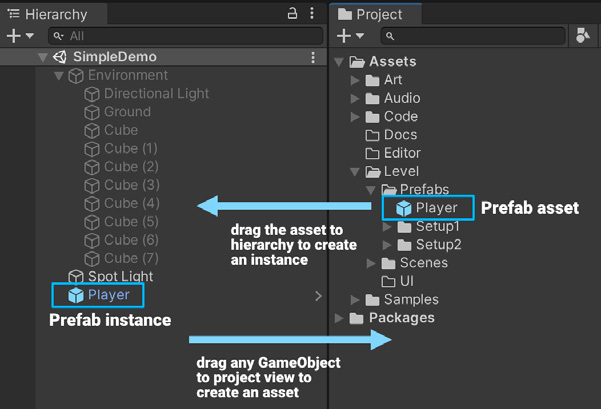
Changes can automatically sync to the Prefabs, simplifying the process of modifying your assets and propagating changes to your scene. Creating Prefab assets and instances To create a Prefab asset, drag a GameObject from the Hierarchy window into the Project window. The GameObject, including its components and child GameObjects, becomes a new asset in your Project window. Prefabs assets appear either with a blue cube Prefab icon or thumbnail view of the GameObject, depending on whether your Project view uses a one-column ortwo column layout.
Likewise, drag the Prefab asset from the Project view to the hierarchy or scene view to create a Prefab instance.
Creating a Prefab asset and instance
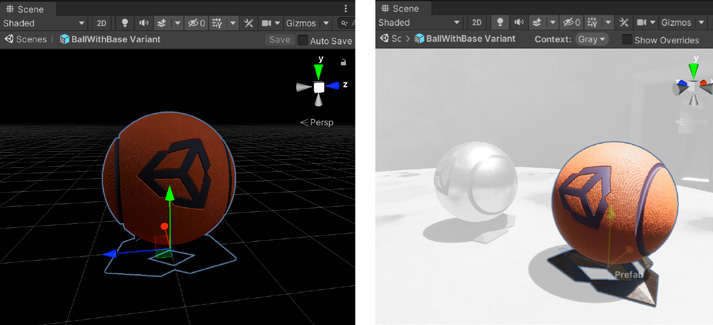
Any changes made to the Prefab asset on disk update automatically on the instances in the scene. This way you don’t need to make the same edit to every copy of the asset. This does not mean all Prefab instances have to be identical. You can override settings on individual prefab instances to make them differ from other instances or from the original asset. Prefab mode To edit a Prefab asset, you can open it in a special Prefab Mode. Prefab Mode allows you to view and edit the contents of the Prefab asset either separately in isolation or in the context of the other GameObjects in your scene. Changes that you make in Prefab Mode affect all instances of that Prefab.
Prefab Mode in isolation (left) or in context (right)
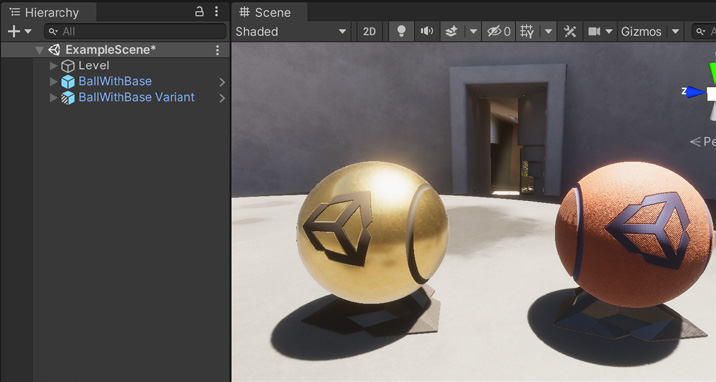
Prefab Variants and Nested Prefabs You can create variants of Prefabs which allow you to design a meaningful modification of a Prefab. Think of it like inheriting from an archetypal asset and then overriding just the parts you want to change.
Variants of the same base Prefab
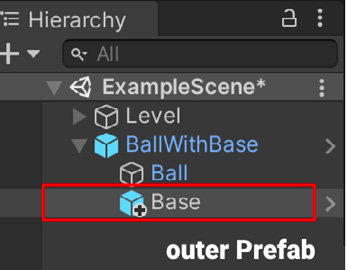
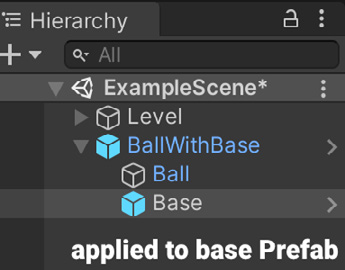
Nest Prefabs inside other Prefabs to create complex hierarchies of objects that are easy to edit at multiple levels. A Nested Prefab instance has a plus badge overlayed on its icon in the hierarchy. That indicates it overrides that specific instance of the outer Prefab.
Nested Prefabs, with the “outer” Prefab denoted by the plus badge
Edit the source Prefab assets independently, propagating changes into the Nested Prefabs.