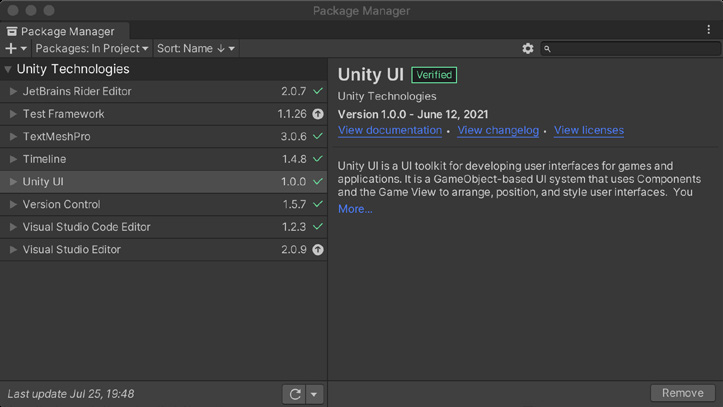
Package Manager
Package Manager To make development more flexible, Unity offers some features as optional add-on packages. These exist outside of the core Editor so that they can follow a more rapid release cycle. The package management system keeps your build small, as it allows you to only install the tools that you need for your specific project requirements. Packages themselves can vary in functionality. They can contain any combination of assets, shaders, textures, plug-ins, icons, and scripts to enhance various parts of your project. Manage available packages using the Package Manager window (Window > Package Manager). In addition to Unity-provided packages that are built-in or part of the Unity registry, you can also install custom packages from disk, GitHub URL, or the Asset Store: —
Click the
button to install a package directly from git URL or a local path.
The Packages drop-down menu changes what appears in the list (Unity Registry/In project/My Assets/Built-in). Meanwhile, the Sort menu organizes packages by name or date.
Asset Store packages from My Assets feature additional filtering options.
The Search field allows you to locate a package by name. Use the Download, Import, and/or Update buttons to manage the packages in use by your project.
The Package Manager
Experienced developers can also leverage the PackageManager API to build their own shared libraries. Watch Creating Custom Packages in Unity for a quick introduction.