Ввод
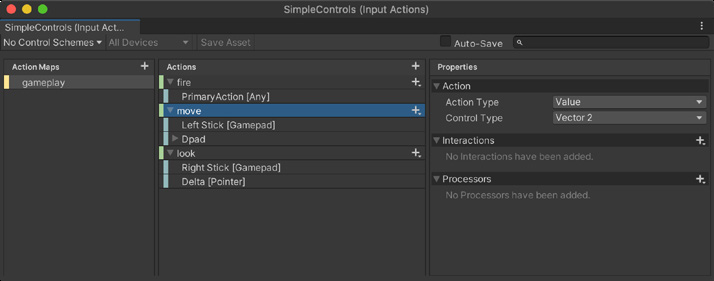
Input Unity has two main systems for handling input, the Input System from the Package Manager and the built-in Input class. Input System The Input System is focused on ease of use, flexibility, and consistency across devices and platforms. It replaces the built-in Input class. While you can still get input directly from a device, the Input System shines when you create a series of indirect actions to drive player interaction. Then you can create an actionMap, a collection of bindings and actions. The action map can then relate those actions to the actual devices.
The Input System is available via the Package Manager.
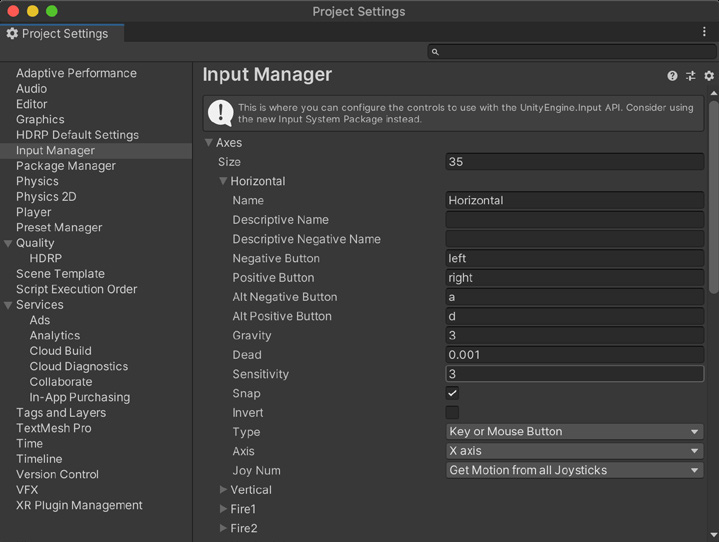
If you want to adapt the input to more devices, you create more action maps rather than hard coding specific device buttons, keyboard keys, etc. Set up your callbacks and actions just once, then add additional mappings later to support more devices. Action maps also assist with switching input depending on your in-game context. For example, your player input can behave differently when driving a vehicle versus walking or running. Be sure to check out the Input System Quick start guide, and install some of the samples available through the Package Manager. Built-in input class You can alternatively use the original built-in Input class. This lets you utilize the Input Manager (Edit > Project Settings > Input Manager) to set up virtual axes for your keys, buttons, and other input devices. It also supports multitouch and accelerometer data on mobile devices. Note that enabling the Input System package (above) disables this built-in Input Manager.
The built-in Input Manager
Here are some useful classes and methods for input: Input
Used to read the axes set up in the Conventional Game Input and access multitouch/accelerometer data on mobile devices
Input.GetAxis
Returns the smoothed value for the virtual axis identified by axisName (value between -1 and 1 for keyboard/joystick devices); for a mouse device, returns the current mouse delta multiplied by the axis sensitivity
Input.GetAxisRaw
Like Input.GetAxis without the smoothing filter
Input.GetButton
Returns true while the virtual button identified by buttonName is held down
Input.GetButtonDown
Returns true during the frame the user pressed down the virtual button identified by buttonName
Input.GetKey
Returns true while the user holds down the key identified by name
Input.GetKeyDown
Returns true during the frame the user starts pressing down the key identified by name
Input.touches
A read-only list of objects representing status of all touches during the last frame
Touch
Structure describing the status of a finger touching the screen
KeyCode
Lists all of the key press, mouse and joystick options
For an overview of the built-in Input system, see the Input Manual page.