Сборка и публикация
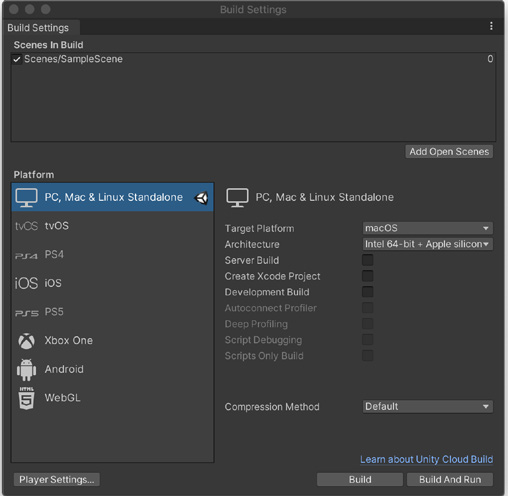
Building and publishing One of Unity’s strengths is its ability to deploy on multiple platforms. To adjust the publishing settings for your application’s build, go to File > Build Settings. Add the relevant scenes to the Scenes in Build. The scene that acts as your entry point into the application will have an index of 0.
Build Settings
The available platforms appear at the lower left. Use the Install with Unity Hub option to install support for the other available target platforms. You can also go directly to the Installs screen of the Unity Hub and Add Module support for any version of Unity. Some consoles, such as PlayStation, Nintendo Switch, or Xbox, require additional modules from the relevant platform publisher. Note that you will need to appraise cross-platform considerations when building your application. For example, mobile devices have less storage, memory, and CPU power, so they are also more susceptible to spikes from garbage collection during automatic memory management. You won’t be able to port a graphically taxing console game to iOS or Android – at least, not without a great deal of platform-specific optimization.
Also, be aware of input requirements when building for more than one platform. Mobile devices with touchscreens and accelerometers need different settings than platforms with controller or keyboard/mouse input. You can use the new Input System to process user input for multiple devices. Platform-dependent compilation lets preprocessor directives partition your scripts to be specific to a target platform. Combine these with the #if compiler directive or ConditionalAttributeClass. If you wanted to add or remove a UI or object for a platform-specific release (e.g., omit a Quit button from an iOS application), then platform-dependent compilation simplifies that logic.
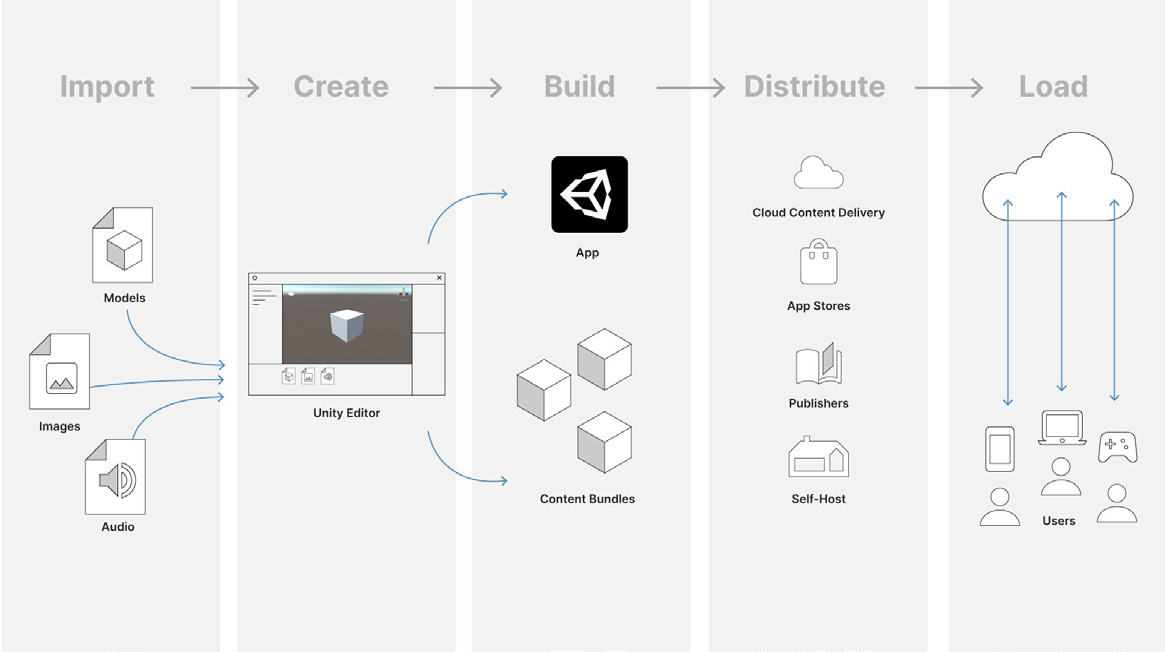
Building and publishing workflow
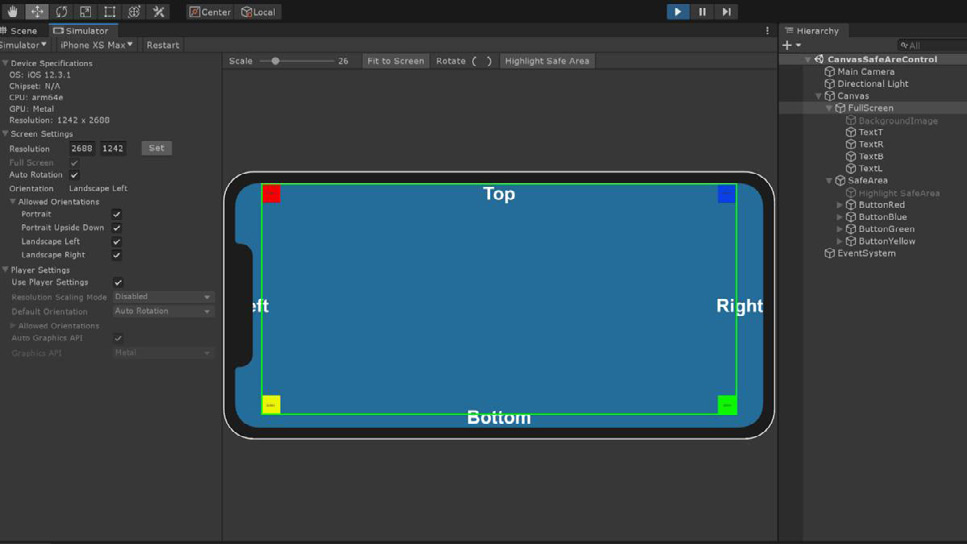
Device Simulator If you are building for mobile, consider installing the Device Simulator using the Package Manager. This lets you view your application on a simulated mobile device to preview its screen shape, resolution, and orientation. To use the Device Simulator view: —
In the Game view, in the top left corner, there is a drop-down menu. Use this to switch between the Game view and the Device Simulator view.
Using the top menu, choose Window > General > Device Simulator.
The Device Simulator
The Device Simulator is intended primarily for viewing the layout of your application and testing basic interactions. Note that the Device Simulator view does not simulate the performance or rendering characteristics of a device, such as processor speed or available RAM. Watch Simulate your Game with Device Simulator in Unity to get started.