Отладка и тестирование игрового процесса
Debugging and playtesting Unity is an excellent tool for tweaking and debugging. At any time, you can enter Editor Play mode and see all of the gameplay variables while the application runs in the Editor. In Play mode, the Game view gives you a preview of your final, published application. You can alter the Unity scene on the fly and experiment, pausing any time or stepping through the code one statement at a time. To assist with playtesting, you’ll likely create cheats that will allow you to: —
Unlock levels, characters, items, etc.
Disable enemies and/or gameplay
Toggle GUIs
Grant invincibility
Add/subtract time, money, collectibles, etc.
Debugging gameplay Playtesting isn’t an exact science, but consider these suggestions:
Implement shortcuts for printing the player’s world position. This helps you determine whether specific bugs happen at a particular place in the level.
For small teams, make a test Prefab for each team member, and read settings and debug options from an uncommitted file. This way, team members won’t accidentally commit testing options or change the production scene.
Maintain a test/sandbox scene with all gameplay elements. For instance, create a scene with all enemies, all objects you can interact with, etc. This makes it easy to test functionality without having to play through the entire game.
Write a set of in-Editor cheats. Attach a MenuItem attribute to a static method that can check if the Application.isPlaying, and then run some logic.
Additional debugging tips Unity also includes a Debug class to help you visualize information in the Editor while it’s running. Use this to print messages or warnings into the Console window, which shows errors, warnings, and other messages generated by Unity. You can also use Debug to draw visualization lines in the Scene view and Game view, as well as to pause Editor Play mode from a script. —
Pausing execution with Debug.Break is useful if you want to check certain values in the Inspector when the application is difficult to pause manually.
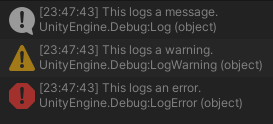
You can format your Console messages with different degrees of severity using Debug.Log, Debug.LogWarning, and Debug.LogError.
Log messages, warnings, and errors in the Console
When using Debug.Log, you can pass in an object as the context. If you click on the message in the Console, Unity highlights the GameObject in the Hierarchy window.
Use Rich Text to mark up your Debug.Log statements. This can help you enhance error reports in the Console.
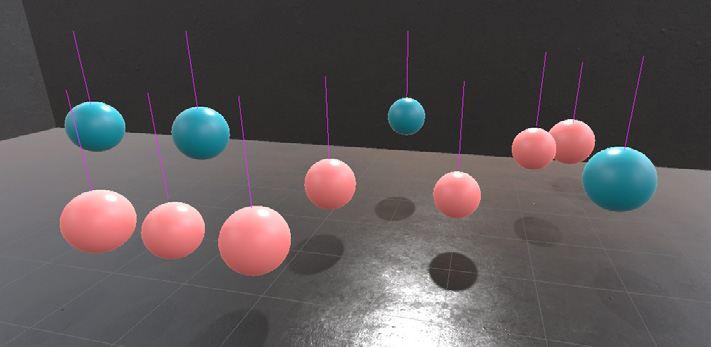
Troubleshooting physics? Debug.DrawLine and Debug.DrawRay can help you visualize ray casting.
Debug.DrawLine
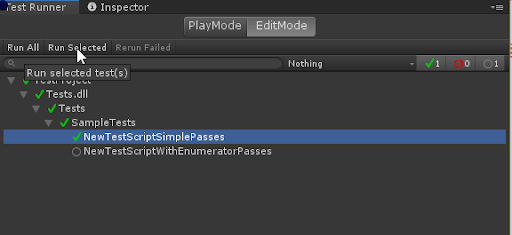
Unity Test Framework (UTF) The Unity Test Framework (formerly known as the Unity Test Runner) allows you to create automated tests to make sure your code runs as intended. Create unit tests for any logical snippet of code and apply test-driven development while you develop the project. UTF enables you to test your code in both Edit mode and Play mode. You can also run your tests on target builds such as Standalone, Android, iOS, and more. UTF extends the NUnit library, an open-source unit testing library for .NET languages. To open the Test Framework, go to Window > General > Test Runner. Follow the instructions to set up a work folder and assembly definition, then add unit tests to your Test Assembly. This process can help you to isolate bugs faster and learn to write a testable way. For more information about the Test Framework, see the Performance Benchmarking in Unity blog post and the Unity Test Framework documentation.
Unity Test Framework