Контроль версий
Version control Whether it’s Plastic, Git, Perforce, or another system, Unity allows you to choose which source control solution works best for you and your team. Unity has in-Editor integrations with two industry-leading version control systems, Perforce and Plastic SCM. You must have either a Perforce or Plastic SCM server set up for your project to use with Unity.
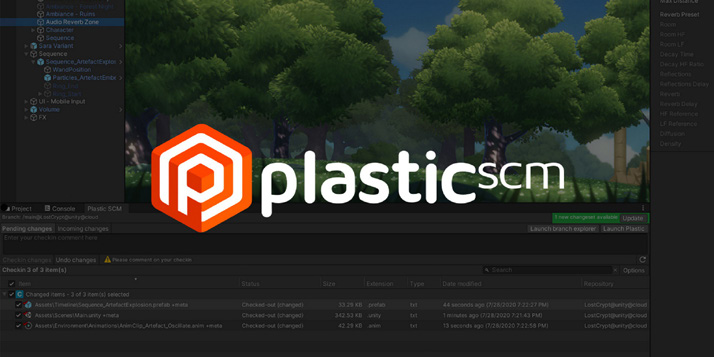
PlasticSCM makes version control simple with its streamlined interface.
Before using source control, navigate to Project Settings > Editor. Confirm that Asset Serialization Mode is set to Force Text. Unity uses serialization to load and save Assets to and from disk. Force Text means that Unity will store the scene files in a text-based format to help with version control merges.
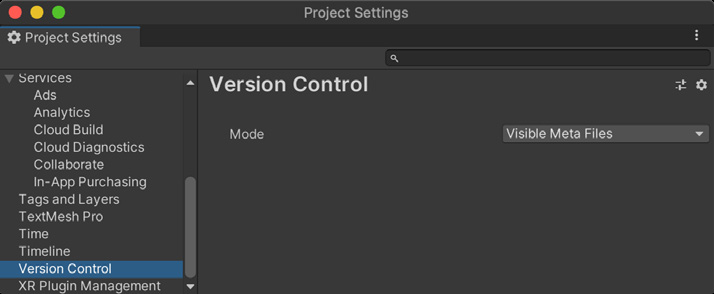
Version Control in the Project Settings
Navigate to Project Settings > Editor > Version Control. According to your version control system, switch to the mode Plastic SCM, Perforce, or Visible Meta Files (for external source control like Git).
Plastic SCM
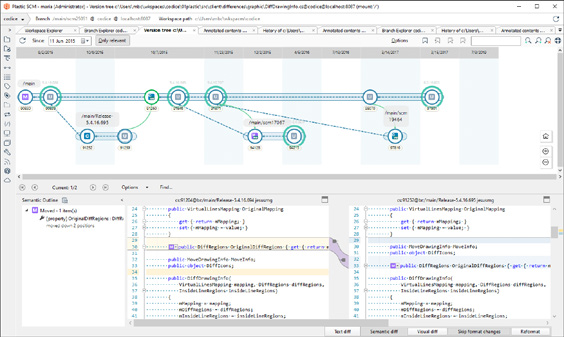
Plastic SCM Plastic SCM is our recommended version control system for Unity game development. This solution offers the best experience when dealing with large binary files (>500 MB), so your art assets can have the same level of management as you would expect for your code. Plastic SCM allows you to work knowing that both your art and programming assets are securely backed up. In addition, the intuitive visual interface simplifies branching and versioning. Here are some of the key benefits of Plastic SCM: —
Speed: Creating branches in a large codebase is significantly faster in Plastic than in Perforce or Git.
Simplicity for non-coders: Artists on your team can work in Gluon mode. This simplified workflow allows them to check out their part of the project, work, and commit their changes, while removing irrelevant parts of the interface.
Cloud hosting: Plastic offers a native solution called Plastic Cloud Edition, designed with fully distributed teams in mind. If your team doesn’t want to consider running its own servers and prefers hosting everything online, try Plastic Cloud Edition.
Distributed Version Control: Set up different repositories in remote offices so teams always work “locally.” This is a Git-like workflow at a larger scale. Use the graphical interface to push and pull changes as well as solve remote conflicts.
Diff window: Plastic features a complete interface to view changed, added, or deleted files. The GUI also includes a separate image diff tool to help you compare two revisions of a texture asset.
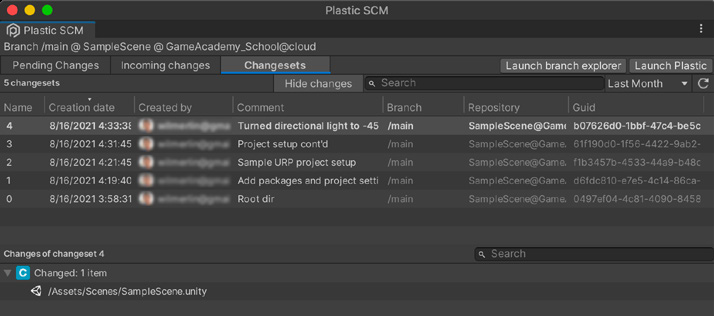
When using Plastic SCM, open the Plastic SCM window (Window > Plastic SCM) to view the files in your changelist.
PlasticSCM window
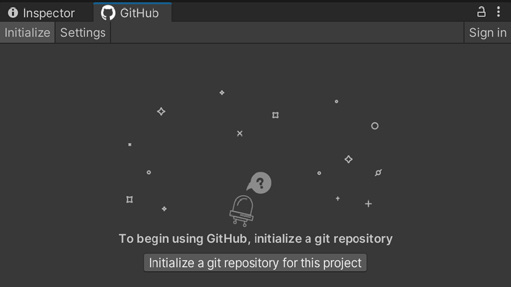
The Pending changes tab lists all of the local changes that are pending a commit into version control. The Incoming changes tab allows you to view all incoming changes and conflicts and update your local project. Any changes made to your project prompts an “Incoming changes” notification at the top right of the Plastic SCM window. Refer to the Version control integrations documentation for more information about the Version Control Window. To learn more, watch the Version Control for games with Plastic SCM video from Unite Now, or check out the Plastic SCM Book to get started. Git Unity developers can also use external source control solutions such as Git. This, however, requires some initial manual setup of the project. To use Git with Unity, create an empty repository on your local machine and optionally sync this to the cloud via GitHub. Be sure to include Git LFS (Large File Support) for more efficient version control of your larger assets, like graphics and sound resources. Unity maintains a .gitignore file that can help you decide what should and shouldn’t go into the Git repository. For the added convenience of working with the GitHub hosting service, install the GitHub for Unity plug-in. This open source extension allows you to view your project history, experiment in branches, commit your changes, and push your code to GitHub without leaving Unity.
Also, consider any of the capable visual clients like GitKraken, SourceTree, or GitHub Desktop.
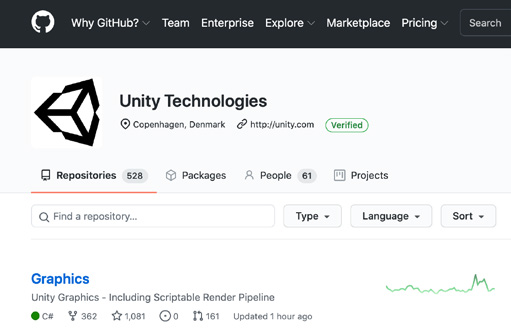
Create a repository using GitHub.
For a walkthrough of setting up Unity with Git, watch the Introduction to Version Control video, which covers the basics of using a visual GitHub client with a sample project.
The GitHub for Unity extension
Perforce If Perforce is your source control of choice, use Helix Core to manage your code, artwork, and game engine assets. Helix Core is free for up to five users and 20 workspaces. Perforce has good performance, even with remote teams distributed around the world. Many AAA or indie game dev studios use Perforce as their primary source control. To use it:
Follow the setup process described in the Unity Version Control documentation.
Read how to set up Perforce Helix Core with Unity.
Consult the Perforce documentation for more detail about Perforce Helix Core.