Сборка и публикация
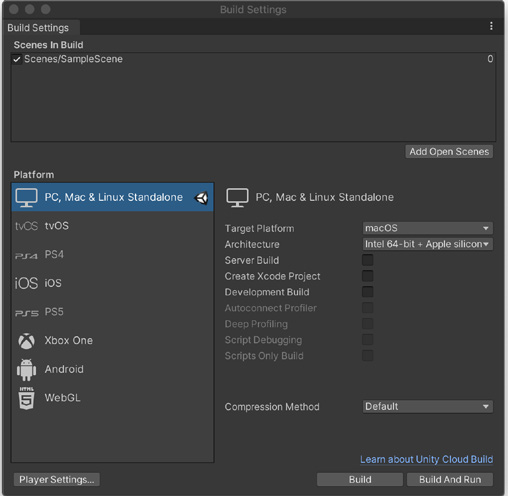
Сборка и публикация Одно из преимуществ Unity - возможность развёртывания на разных платформах. Чтобы изменить параметры публикации сборки приложения, откройте File > Build Settings. Добавьте нужные сцены в список Scenes in Build. Сцена, служащая точкой входа в приложение, должна иметь индекс 0.
Build Settings
Доступные платформы перечислены в нижней левой части окна. Чтобы установить поддержку других целевых платформ, используйте Install with Unity Hub. Можно также открыть экран Installs в Unity Hub и с помощью Add Module добавить нужные модули к любой версии Unity. Для некоторых консолей, включая PlayStation, Nintendo Switch и Xbox, требуются дополнительные модули от издателя соответствующей платформы. При сборке приложения учитывайте различия между платформами. Например, мобильные устройства располагают меньшими объёмами хранилища и памяти, а также менее мощными процессорами, поэтому сильнее подвержены скачкам GC при автоматическом управлении памятью. Графически требовательную консольную игру нельзя просто перенести на iOS или Android - во всяком случае, без значительной оптимизации под конкретную платформу.
При сборке для нескольких платформ учитывайте и требования к вводу. Мобильным устройствам с сенсорными экранами и акселерометрами нужны иные настройки, чем платформам с контроллером или клавиатурой и мышью. Новая Input System позволяет обрабатывать пользовательский ввод с разных устройств. Платформозависимая компиляция позволяет с помощью директив препроцессора разделять код скриптов по целевым платформам. Используйте их вместе с директивой компилятора #if или классом ConditionalAttribute. Если для выпуска на определённой платформе нужно добавить или удалить элемент UI либо объект - например, исключить кнопку Quit из приложения для iOS, - платформозависимая компиляция упрощает такую логику.
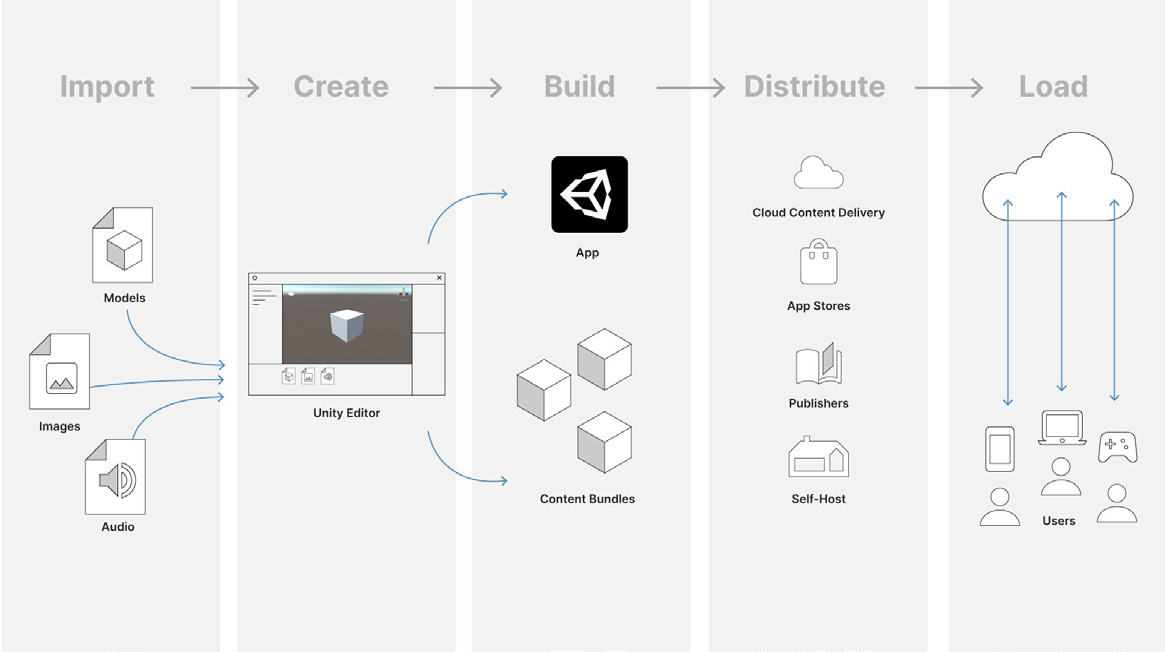
Импорт
Создание
Сборка
Распространение
Загрузка
Приложение Модели
Магазины приложений
Издатели Изображения
Пакеты контента
Собственный хостинг Пользователи
Аудио
Рабочий процесс сборки и публикации
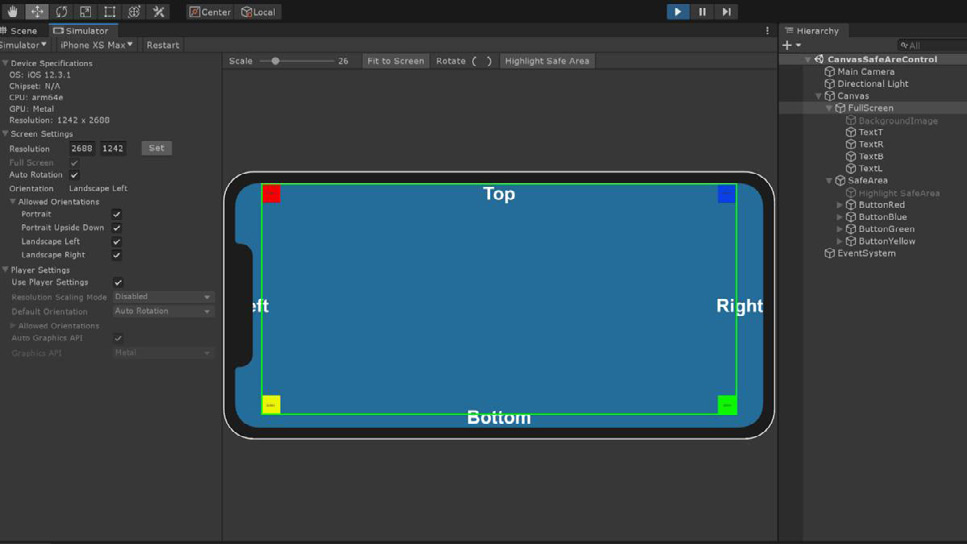
Device Simulator При сборке для мобильных устройств установите Device Simulator через Package Manager. Он позволяет просматривать приложение на имитируемом мобильном устройстве и заранее проверять форму экрана, разрешение и ориентацию. Чтобы открыть представление Device Simulator: - В левом верхнем углу окна Game находится раскрывающееся меню. Оно переключает представления Game и Device Simulator. - В верхнем меню выберите Window > General > Device Simulator.
Device Simulator
Device Simulator предназначен прежде всего для просмотра компоновки приложения и проверки базовых взаимодействий. Представление Device Simulator не имитирует производительность и особенности рендеринга устройства, например скорость процессора или доступный объём оперативной памяти. Для начала посмотрите видео Simulate your Game with Device Simulator in Unity.
Building and publishing One of Unity’s strengths is its ability to deploy on multiple platforms. To adjust the publishing settings for your application’s build, go to File > Build Settings. Add the relevant scenes to the Scenes in Build. The scene that acts as your entry point into the application will have an index of 0.
Build Settings
The available platforms appear at the lower left. Use the Install with Unity Hub option to install support for the other available target platforms. You can also go directly to the Installs screen of the Unity Hub and Add Module support for any version of Unity. Some consoles, such as PlayStation, Nintendo Switch, or Xbox, require additional modules from the relevant platform publisher. Note that you will need to appraise cross-platform considerations when building your application. For example, mobile devices have less storage, memory, and CPU power, so they are also more susceptible to spikes from garbage collection during automatic memory management. You won’t be able to port a graphically taxing console game to iOS or Android – at least, not without a great deal of platform-specific optimization.
Also, be aware of input requirements when building for more than one platform. Mobile devices with touchscreens and accelerometers need different settings than platforms with controller or keyboard/mouse input. You can use the new Input System to process user input for multiple devices. Platform-dependent compilation lets preprocessor directives partition your scripts to be specific to a target platform. Combine these with the #if compiler directive or ConditionalAttributeClass. If you wanted to add or remove a UI or object for a platform-specific release (e.g., omit a Quit button from an iOS application), then platform-dependent compilation simplifies that logic.
Building and publishing workflow
Device Simulator If you are building for mobile, consider installing the Device Simulator using the Package Manager. This lets you view your application on a simulated mobile device to preview its screen shape, resolution, and orientation. To use the Device Simulator view: —
In the Game view, in the top left corner, there is a drop-down menu. Use this to switch between the Game view and the Device Simulator view.
Using the top menu, choose Window > General > Device Simulator.
The Device Simulator
The Device Simulator is intended primarily for viewing the layout of your application and testing basic interactions. Note that the Device Simulator view does not simulate the performance or rendering characteristics of a device, such as processor speed or available RAM. Watch Simulate your Game with Device Simulator in Unity to get started.