Паттерн Runtime Set
The Runtime Set pattern
At runtime, you’ll often need to track a list of GameObjects or components in your scene. For example, you may need to maintain a list of enemies or NPCs. Because a ScriptableObject instance appears at the project level, it can store data that’s available to any object from any scene. Again, this replicates much of the easy global access of a singleton without that pattern’s known drawbacks. Reading data directly from a ScriptableObject is also more optimal than searching the Scene Hierarchy with a find operation such as Object.FindObjectOfType or GameObject. FindWithTag. Depending on your use case and the size of your hierarchy, these are relatively expensive methods that can be inefficient for per-frame updates.
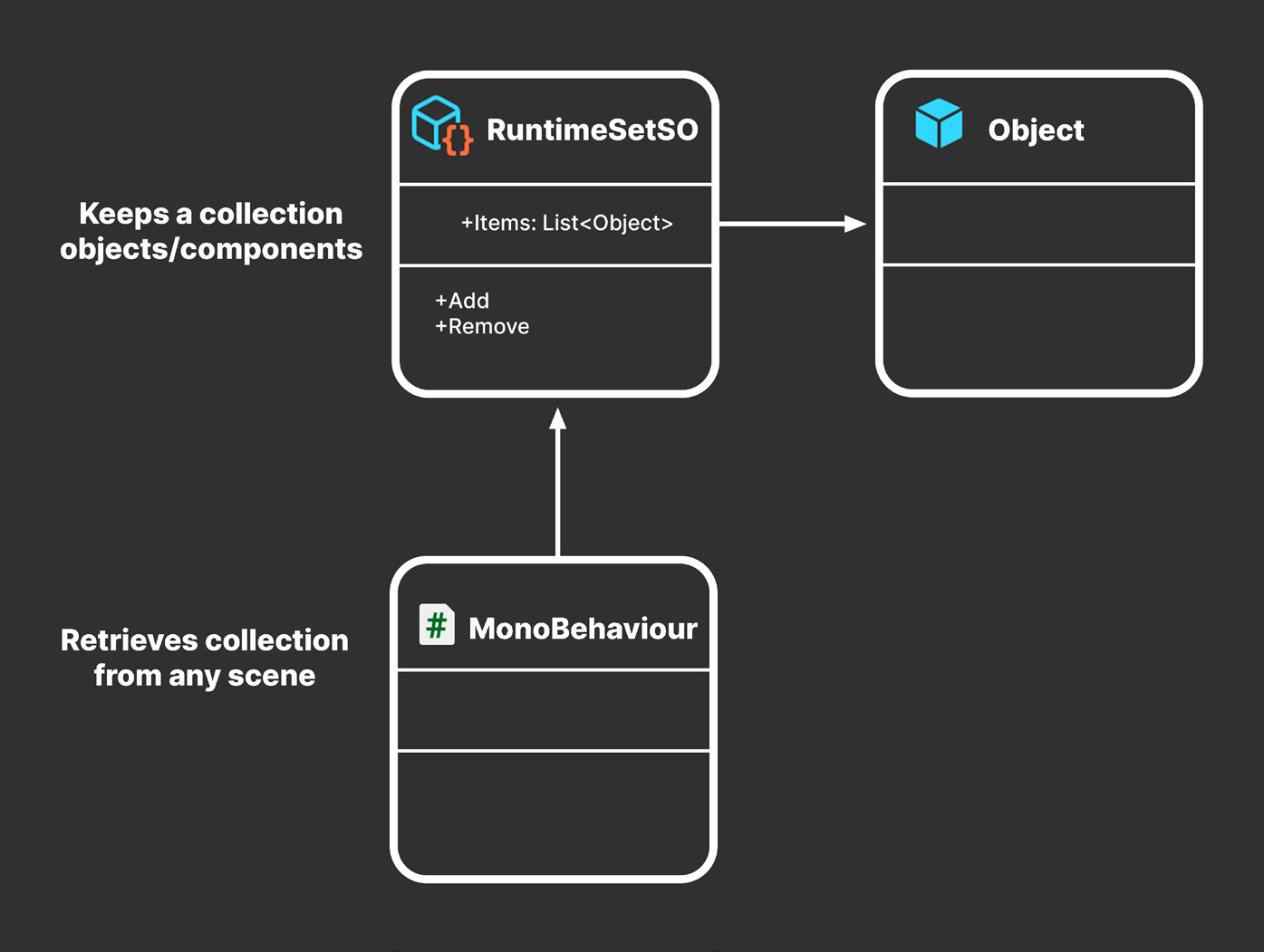
Basic Runtime Set Instead, consider storing data on a ScriptableObject as a “Runtime Set.” This is a specialized data container that maintains a public collection of elements but also provides basic methods to add and remove to the collection.
A Runtime Set provides global access to a collection of data.
Here’s a basic Runtime Set that tracks a list of GameObjects:
using System.Collections.Generic;
using UnityEngine;
[CreateAssetMenu(menuName = "GameObject Runtime Set", fileName = “GORuntimeSet”)] public class GameObjectRuntimeSetSO : ScriptableObject {
    private List<GameObject> items = new List<GameObject>();
    public List<GameObject> Items => items;
    public void Add(GameObject thingToAdd) {
        if (!items.Contains(thingToAdd)) items.Add(thingToAdd);
}public void Remove(GameObject thingToRemove) {
if (items.Contains(thingToRemove)) items.Remove(thingToRemove);
}
}
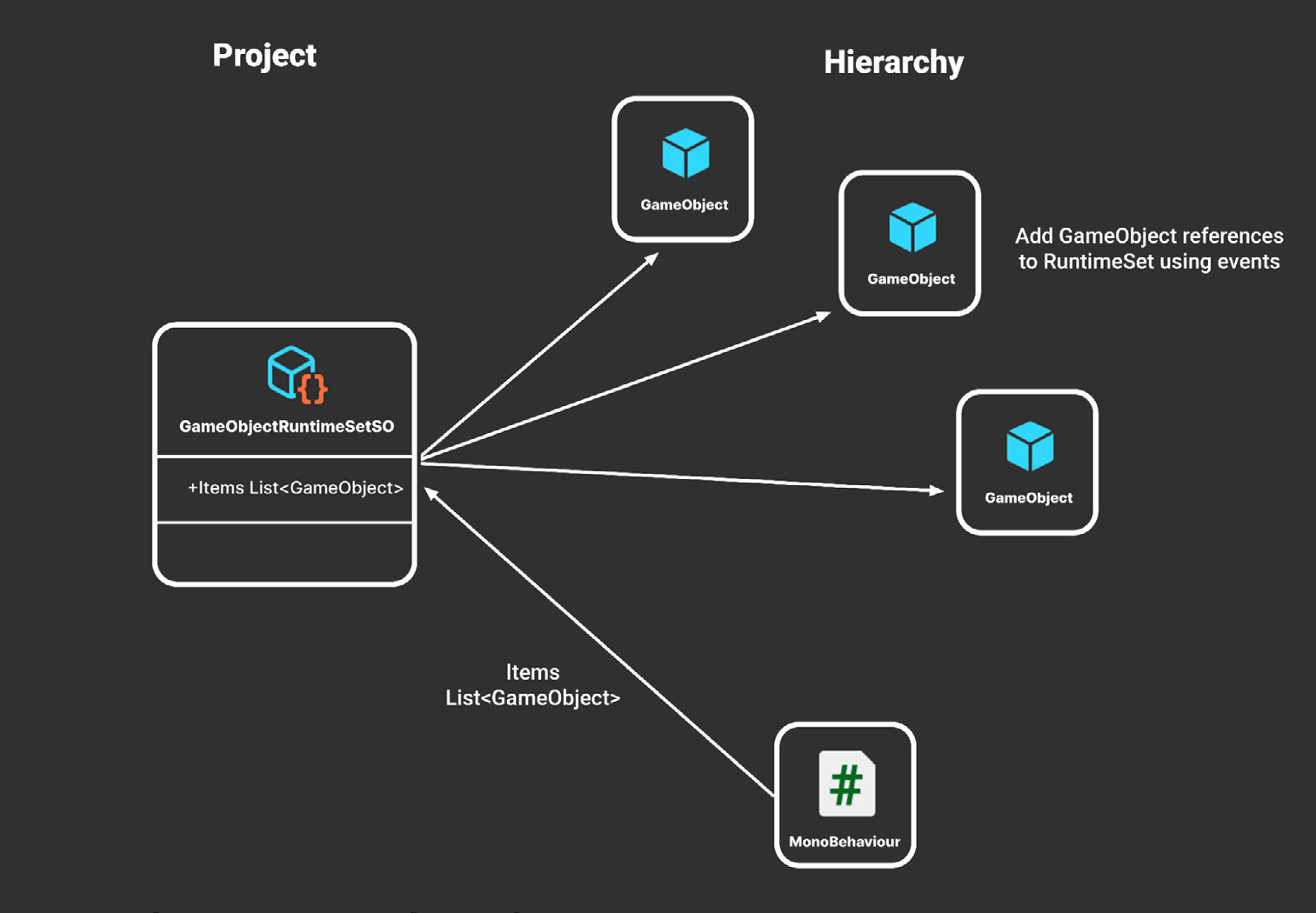
At runtime, any MonoBehaviour can reference the public Items property to obtain the full list. Another script or component must be responsible for managing how the GameObjects are added or removed from this list.A GameObject Runtime Set
Reference the Runtime Set in a MonoBehaviour. Then, in the OnEnable and OnDisable event functions, add or remove the object from the Runtime Set’s Items list. Alternatively, use an event channel to send a GameObject as its payload (e.g., GameObjectEventChannel).
Generic version You may want to use a Runtime Set with a specific type of MonoBehaviour. For instance, this could allow you to maintain a list of enemy or pickup items accessible to anything in your scene. In that case, you could create specific Runtime Sets for each type (e.g., EnemyRuntimeSet, PickupRuntimeSet, etc.). One way to streamline the creation of additional Runtime Sets is to use a generic abstract class: public abstract class RuntimeSetSO<T> : ScriptableObject { [HideInInspector] public List<T> Items = new List<T>();
public void Add(T thing) {
    if (!Items.Contains(thing)) Items.Add(thing);
}public void Remove(T thing) {
if (Items.Contains(thing)) Items.Remove(thing);
}
}This works similarly to the original GameObjectRuntimeSet but with added flexibility. If you wanted to create a Runtime Set for a custom Foo component, you would create a concrete FooRuntimeSetSO like so:
[CreateAssetMenu(menuName = "Foo Runtime Set", fileName = "FooRuntimeSet")] public class FooRuntimeSetSO : RuntimeSet<Foo> { }Build as many concrete classes as needed for gameplay (e.g., enemies, NPCs, inventory items, quests, and more can all have their own Runtime Sets). You just need to declare a new empty class with the right type. As an alternative to using events, each Foo component can add or remove itself using its OnEnable or OnDisable methods. Then, if you set the FooRuntimeSet field in the Inspector, the Foo component will appear in the Runtime Set automatically. This is especially handy if you’re using the Foo component with prefabs.
public class Foo : MonoBehaviour {
    public FooRuntimeSetSO RuntimeSet;
    private void OnEnable() { RuntimeSet.Add(this); }
    private void OnDisable() { RuntimeSet.Remove(this); }
}
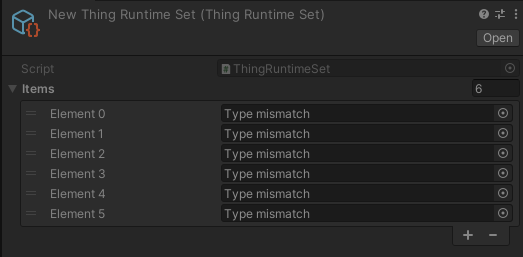
Note: One limitation of this technique is that if you inspect the ScriptableObject at runtime, you won’t be able to see the contents of the Runtime Set list in the Inspector. If you try to publicly expose the list in the Inspector, you’ll see this:
Runtime Sets won’t show scene objects or components in the Inspector.
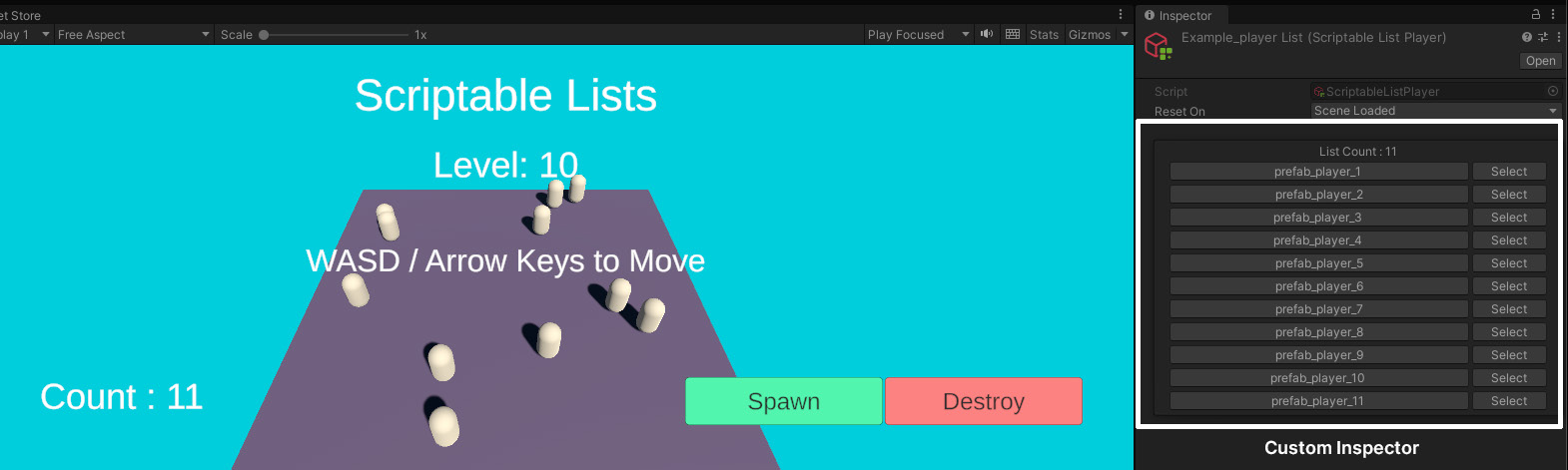
By default, a “Type mismatch” appears in each element field since a ScriptableObject won’t be able to serialize a scene object. The list works normally, but the data does not display correctly. Use a public property or the HideInInspector attribute if you want to avoid confusion and prevent the list from showing in the Inspector. You can also fix this issue with a custom Editor script and Inspector. For a good example of this, see SOAP (ScriptableObject Architectural Pattern) on the Asset Store.
A custom Editor in SOAP shows the contents of a Runtime Set.
Fun facts about foo and bar The terms foo and bar are common placeholder names in programming. These terms were likely chosen because they are short, easy to remember, and sound distinctive. While their exact origins are unclear, some people believe that the terms originated from radar operators in World War II. The nonsense word “foo” also appeared as a catchphrase in a 1930’s comic strip. In a programming context, their use is generally credited to the Tech Model Railroad Club at MIT circa the 1960s. The MIT train room had two general-purpose buttons by the door labeled “foo” and “bar.” MIT hackers often repurposed these names for their ideas, hence the adoption of foo and bar as general variable names.Today, the use of foo and bar as dummy variable names is a widespread convention in the programming community.