ScriptableObject и MonoBehaviour
ScriptableObjects versus MonoBehaviours
On the surface, ScriptableObjects are simple. The API sports only a few methods. In this case, that’s a good thing. Simplicity means less can go wrong.
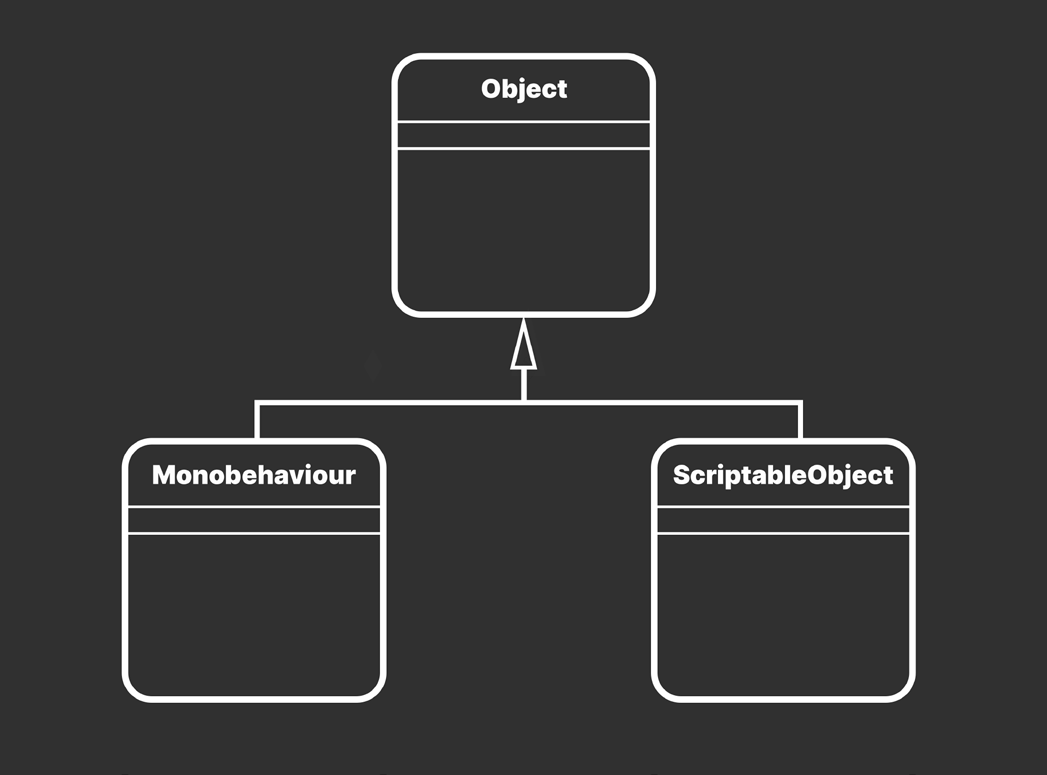
Unity Object UML
Like MonoBehaviour, the ScriptableObject class derives from UnityEngine.Object class.
Comparison Probably the best way to understand ScriptableObjects is to compare them with their siblings, MonoBehaviours. This chart breaks down their similarities and differences. MonoBehaviour
ScriptableObject
MonoBehaviours and ScriptableObjects are both scripts. MonoBehaviour and ScriptableObject classes derive from UnityEngine.Object. MonoBehaviours receive callbacks from Unity. Connect your methods to the game engine’s player loop by naming them according to MonoBehaviour’s event functions like Update(). e.g., Start, Awake, Update, OnEnable, OnDisable, OnCollisonEnter
ScriptableObjects do not receive most Unity lifecycle callbacks from Unity like Update, Start or FixedUpdate. ScriptableObjects support a limited number of event functions, including Awake, OnEnable, OnDestroy, and OnDisable at runtime. The Editor also calls OnValidate and Reset from the Inspector. You can create other methods on a ScriptableObject, but the player loop does not invoke them automatically.
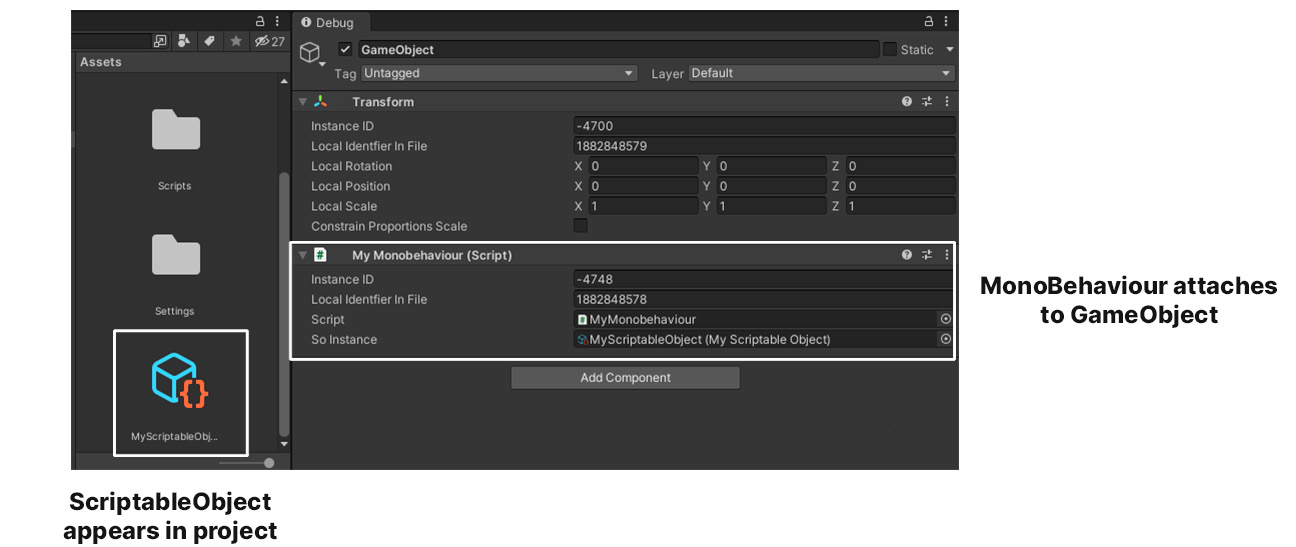
MonoBehaviours must be attached to GameObjects at runtime.
ScriptableObjects are not attached to any specific GameObject.
If you create one at runtime, use the AddComponent API.
Save ScriptableObjects into their own asset files at the Project level. Then, reference the ScriptableObject asset from a Monobehaviour or other script.
When we do save them, we save MonoBehaviours data into Scenes and prefabs.
Each ScriptableObject instance can be saved into its own file at the Project level.
In the Editor, changes to MonoBehaviour values reset when exiting Play mode.
In the Editor, changes to ScriptableObject values do not reset when exiting Play mode. In a standalone build, changes to ScriptableObject values at runtime are not saved.
MonoBehaviours and ScriptableObjects are both serializable and can be viewed in the Inspector.
Callbacks and messages ScriptableObjects have a subset of the event functions available to MonoBehaviours. You can create your own methods in your ScriptableObjects too, but you need to call them yourself. The table below shows only the methods that will be called automatically in the PlayerLoop. Event function
When it executes
(runtime) Awake
This is called as the ScriptableObject script starts, similar to MonoBehaviour’s Awake callback. This also executes when the game is launched or if a scene loads with a reference to the ScriptableObject asset.
OnEnable
This is called when the ScriptableObject is loaded or instantiated, immediately after the Awake callback. OnEnable executes during the ScriptableObject.CreateInstance or after successful script recompilation.
OnDisable
This is called when the ScriptableObject goes out of scope. This happens if you load a Scene without references to the ScriptableObject asset or right before the ScriptableObject’s OnDestroy. Unity also executes OnDisable before script recompilations. When entering Play mode, OnDisable runs right before OnEnable.
OnDestroy
This is called when something destroys the ScriptableObject, either deleting it in the Editor or from code. If you’ve created the ScriptableObject at runtime, OnDestroy also invokes when the application quits or if the Editor exits Play mode. Note: This only destroys the native C++ part of the object. See Lifecycle and Creation for more information.
Editor-only functio ns
When it executes
OnValidate
OnValidate executes when the script is loaded or a value changes in the Inspector. This can be used to ensure that your data stays within a certain range.
Reset
Reset invokes when you hit the Reset button in the Inspector context menu.
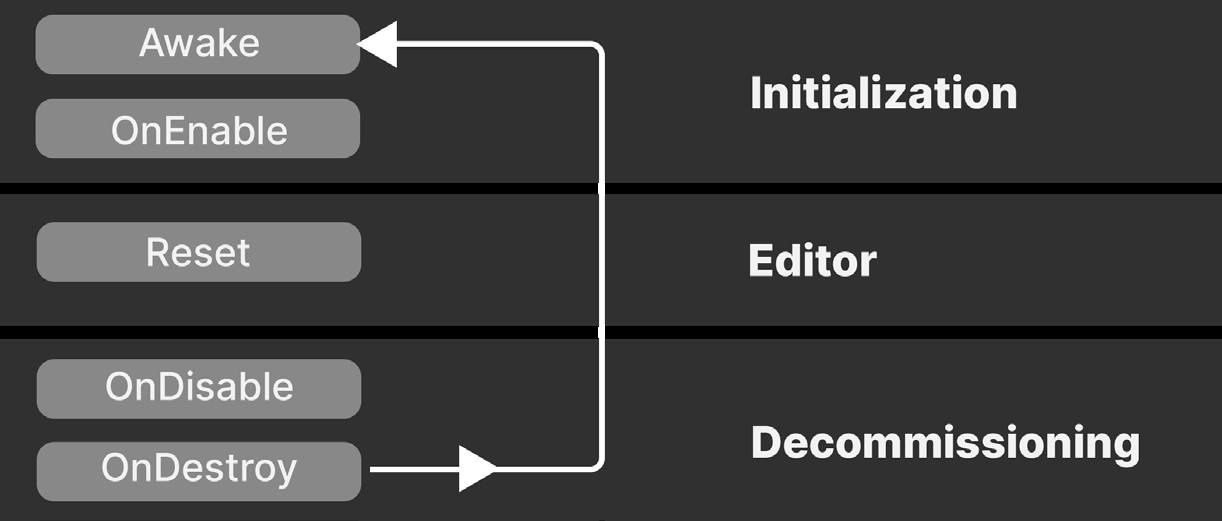
To destroy a ScriptableObject, remove it from the Editor or call Destroy/DestroyImmediate at runtime. Here’s a brief overview of a ScriptableObject’s event functions and life cycle. Compare this with the order of execution of MonoBehaviour event functions, starting from the top.
ScriptableObject event functions and execution order
Files One of their biggest differences between MonoBehaviours and ScriptableObjects is how they save their data. Unity serializes MonoBehaviours within either a Scene or a prefab file. The saved data contains: —
The MonoBehaviour itself
The attached GameObject
Its Transform
Any other components and MonoBehaviours on the attached GameObject
ScriptableObject versus MonoBehaviour
In contrast, Unity saves ScriptableObjects into their own asset files. These files are smaller and more compartmentalized than MonoBehaviours.
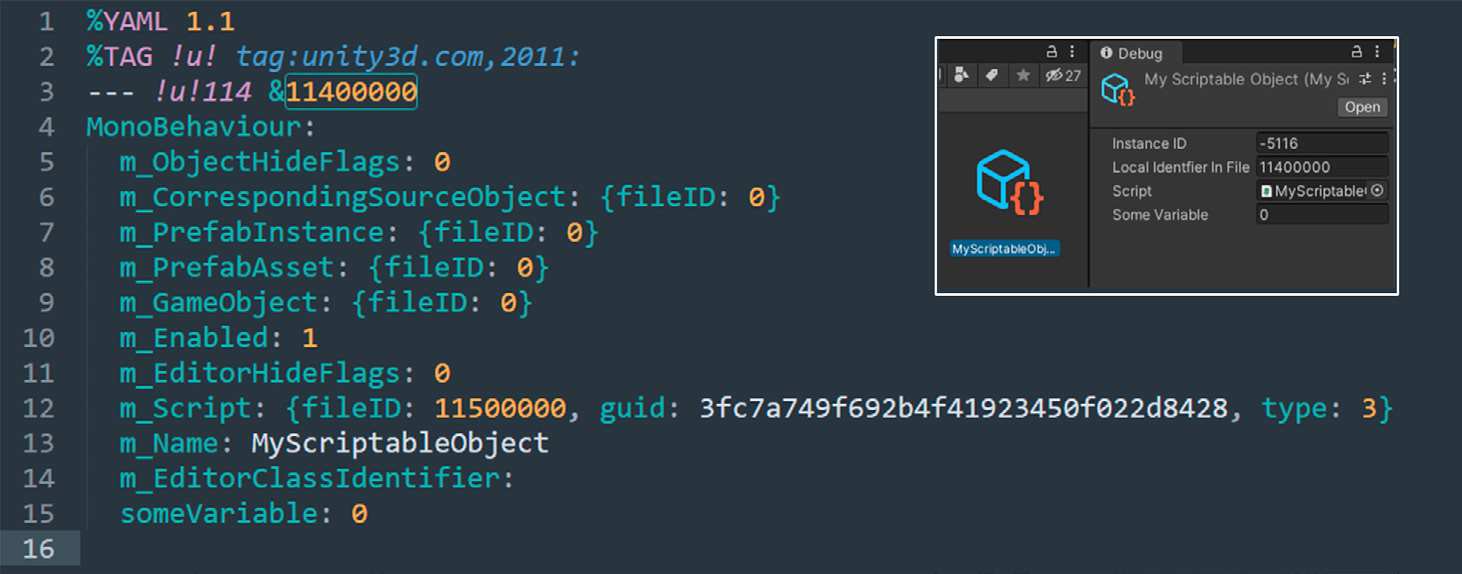
If you choose to use Mode: Force Text in the Project Settings > Asset Serialization window, you can open a ScriptableObject asset in a text editor. It might look something like this:
A ScriptableObject instance, serialized as text
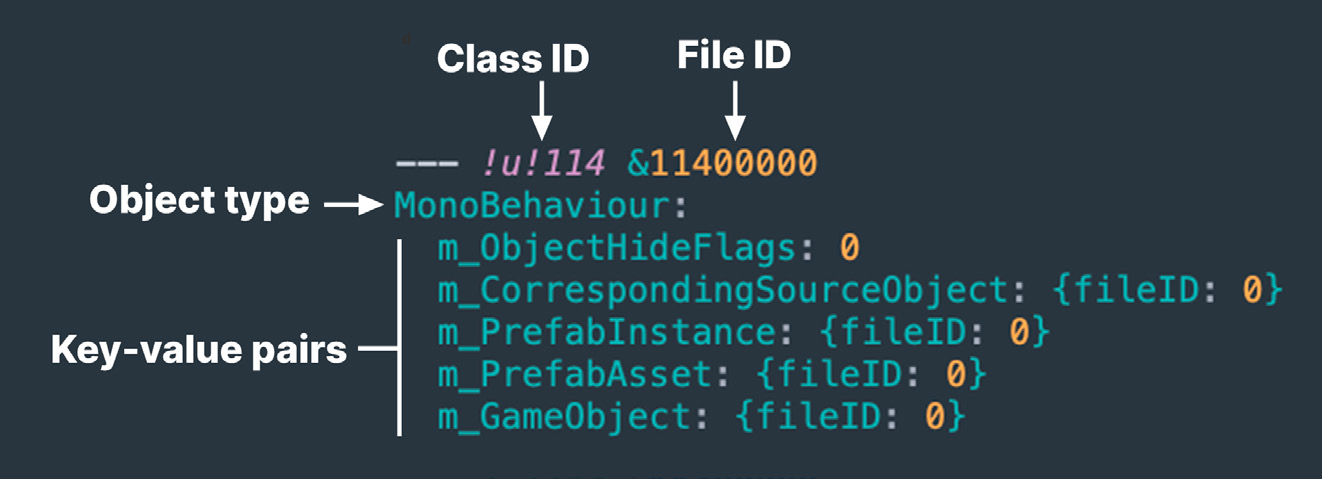
YAML ain’t markup language Unity uses a high performance serialization library that implements a subset of the YAML specification. This is a lightweight, easy-to-read language related to XML and JSON. In YAML, data is organized as a hierarchy of nested elements. Each object has a Class ID, File ID, and object type. Note that ScriptableObjects use “MonoBehaviour” as their object type, instead of defining their own.
An object header in YAML
Under each object are its serialized properties, represented by key-value pairs. For more information, read the blog post “Understanding Unity’s serialization language, YAML”.
Creation and lifecycle The lifecycle of a ScriptableObject is similar to that of any other asset (materials, textures, and so on) in your project. As in the previous example, apply the
[CreateAssetMenu] attribute to your script in order to add a custom menu action to the Editor. You can optionally specify the default fileName or menu item order. The following code is the most common way to create a ScriptableObject asset. [CreateAssetMenu(fileName="MyScriptableObject"] public class MyScriptableObject: ScriptableObject { public int SomeVar; }
If you need to make a ScriptableObject instance at runtime, you can call the static CreateInstance method: ScriptableObject.CreateInstance<MyScriptableObjectClass>();
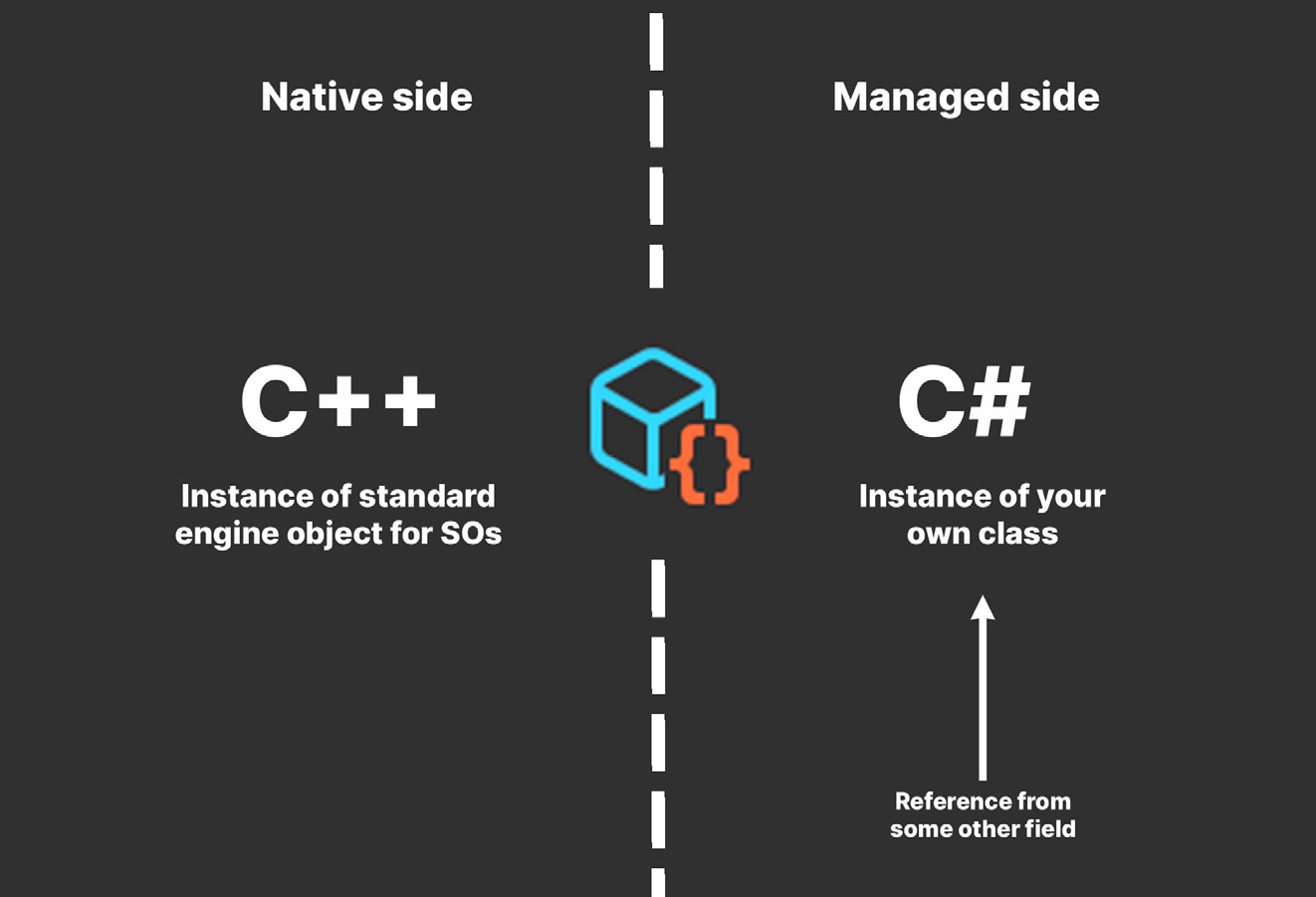
Destroying ScriptableObjects Like other Unity objects, a ScriptableObject consists of a native C++ portion, as well as a C# managed portion. You can destroy the native C++ directly, but the managed part remains until the asset garbage collector (GC) clears it. The GC cleanup occurs if you change scenes or call Resources.UnloadUnusedAssets.
ScriptableObjects have both a native and managed side.
Explicitly set any references to the ScriptableObject asset to null to avoid delaying garbage collection. Note: It’s important to do this before calling Destroy or DestroyImmediate. Otherwise, the reference to the object may be nominally marked “null” in the Editor, even if it isn’t really null. GC cleanup only happens once there are no more references to the ScriptableObject.
Once you have the knack of creating and destroying your own ScriptableObjects, it’s time to explore some creative ways to use them in your game application.