Паттерн «Наблюдатель»
The Observer pattern
When developing a game, it’s common to have multiple GameObjects that need to share data or states with each other. In a small game, you can make direct references between these objects, but this doesn’t scale very well. Managing these dependencies can require significant effort and is often a source of bugs. You’ll need a better solution as your application grows in size.
Avoiding singletons Many developers opt to use singletons – one global instance of a class that survives scene loading. Singletons, however, introduce global states and make unit testing difficult. If you’re working with a prefab that references a singleton, you’ll end up importing all of its dependencies just to test an isolated function. This reduces modularity and makes your code harder to debug. As an alternate solution you can use ScriptableObject-based events to help your objects communicate.
More on singletons The subject of singletons in Unity game development is often cause for debate. Singletons can be a suitable solution for smaller projects or prototyping. In large applications, the cons of using singletons often outweigh their advantages. Many developers consider the singleton to be an anti-pattern for this reason. Singletons are easy to learn and understand but can introduce issues when they’re used incorrectly. Most of the patterns described here will help you avoid relying on singletons. If you want easy access to shared data, consider a Runtime Set based on ScriptableObjects (see below). If you need a way to send messages between objects, try a ScriptableObject-based event channel. Restructuring your architecture away from singletons may improve scalability and testability. Read the e-book Level up your code with design patterns and SOLID to learn more about the pros and cons of singletons.
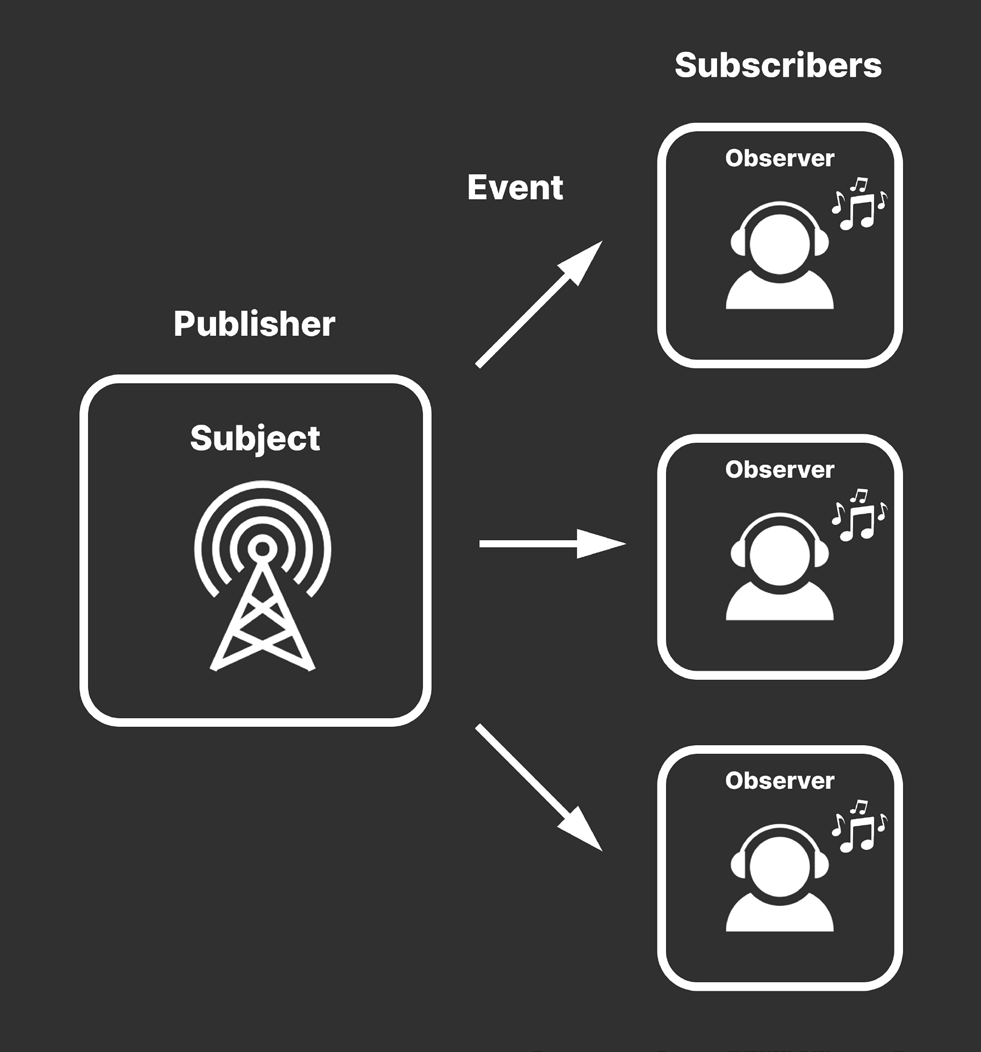
ScriptableObject-based events As you’ve already seen, ScriptableObjects aren’t just for handling data. They can contain methods, just like any other script. These methods can serve as a means for objects to communicate. In the observer design pattern, a subject broadcasts a message to one or more loosely coupled observers. Each observing object can react independently of the subject but is unaware of the other observers. The subject can also be referred to as the “publisher” or “broadcaster.” The observers are also known as “subscribers” or “listeners.” An event-based architecture only executes when needed, rather than running each frame. For this reason, it’s often more optimized than adding logic to a MonoBehaviour’s update methods.
The basic observer pattern
You can implement the observer pattern with MonoBehaviours or C# objects. While this is already common practice in Unity development, a script-only approach means your designers will rely on the programming team for every event needed during gameplay. An alternative is to create ScriptableObject-based events. This is a designer-friendly way to set up the observer pattern. Here, the ScriptableObject works as an intermediary between subject and observer, providing a graphical interface in the Editor.
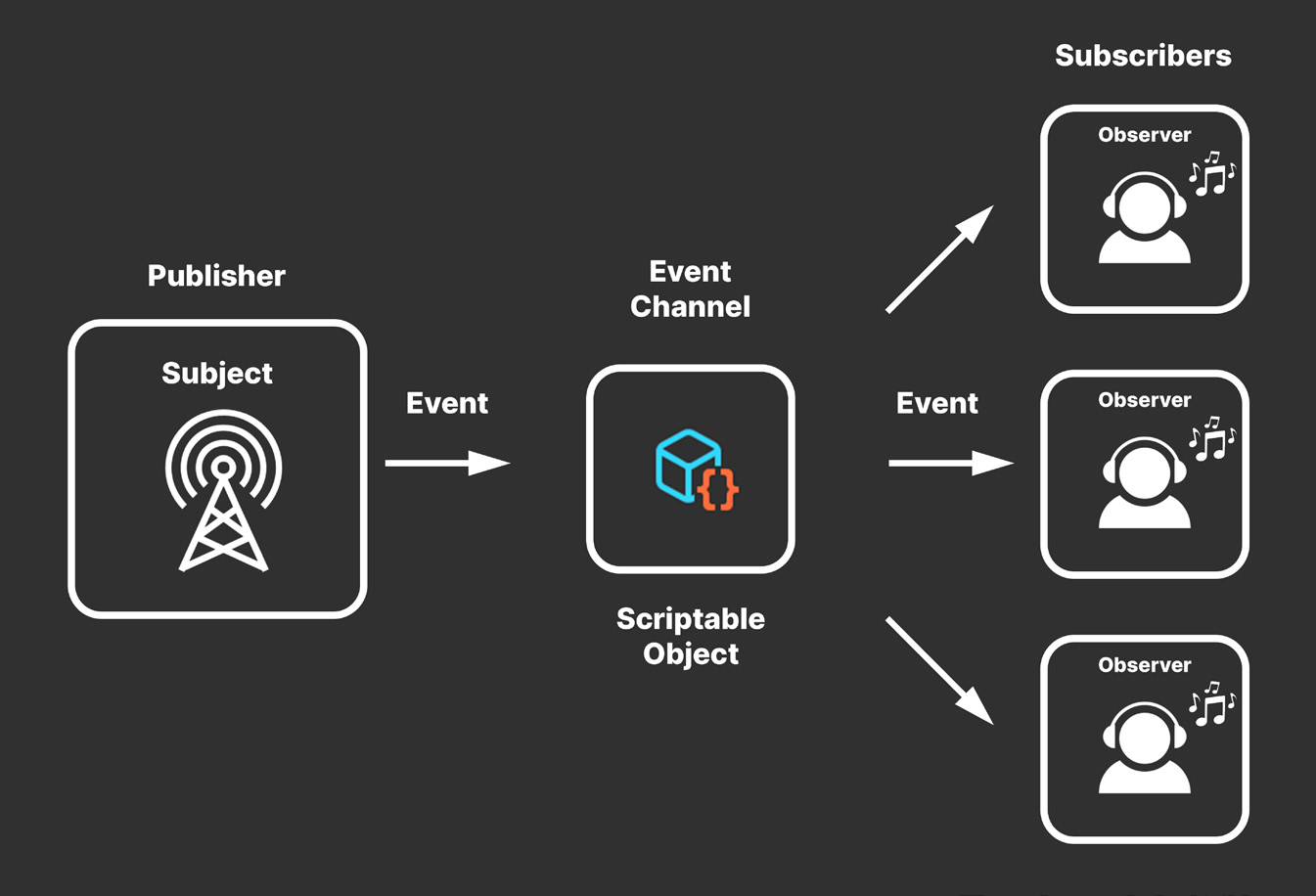
The ScriptableObject-based event channel
While at first glance it appears that you’ve only added a layer of overhead to the observer pattern, this structure offers some advantages. Because ScriptableObjects are assets, they are accessible to all objects in your Scene Hierarchy and don’t disappear on scene loading. This is why many developers use singletons in the first place: easy, persistent access to certain resources. ScriptableObjects can often provide the same benefits without introducing as many unnecessary dependencies. In ScriptableObject-based events, any object can serve as publisher (which broadcasts the event), and any object can serve as a subscriber (which listens for the event). The ScriptableObject sits in the middle and helps relay the signal, acting like a centralized intermediary between the two. One way to think about this is as an “event channel.” Imagine the ScriptableObject as a radio tower that has any number of objects listening for its signals. An interested Monobehaviour can simply subscribe to the event channel and respond when something happens.
Example: Event channels Any ScriptableObject that includes the following can function as an event channel: A delegate (UnityAction or System.Action): This notifies subscribers and passes the appropriate data as parameters. Use a UnityAction for a more artist-friendly experience; otherwise, the System.Action delegate works well here.
The event keyword limits the delegate so that it can only be invoked from within the ScriptableObject class (or derived class where it’s declared). An event-raising method: This public method invokes the delegate.
And that’s it. You can set up any number of event channels to determine various aspects of gameplay. Because they exist at the project level, ScriptableObjects can raise events that are globally accessible. This can connect otherwise unrelated objects in the scene in a scalable way.
System.Action or UnityAction System.Action is a general purpose delegate type defined in the .NET Framework’s System namespace. It can be used in your Unity projects without needing to declare a custom delegate. Adding the event keyword makes the delegate type read only; other objects can listen for the delegate’s registered methods, but they can’t invoke those methods directly. UnityAction is a delegate type that’s specifically defined within the UnityEngine.Events namespace. You will typically use it with the UnityEvent class, which is an alternative means of creating events in Unity. UnityEvents and UnityActions appear in the Inspector, so they often serve as a more user- or artist-friendly way to implement the observer pattern. In general, you can use either System.Action or UnityAction, depending on your specific needs. You have the option of deploying either or both in the same project. If you want a more general purpose delegate that is not tied to the Unity game engine, use System.Action. If you want a delegate specifically designed for UnityEvents, use UnityAction.
Here, you can make a VoidEventChannelSO that raises an event without passing any parameters. This one contains a UnityAction named OnEventRaised.
[CreateAssetMenu(menuName = "Events/Void Event Channel")] public class VoidEventChannelSO : ScriptableObject {
    public event UnityAction OnEventRaised;
    public void RaiseEvent() {
if (OnEventRaised != null)
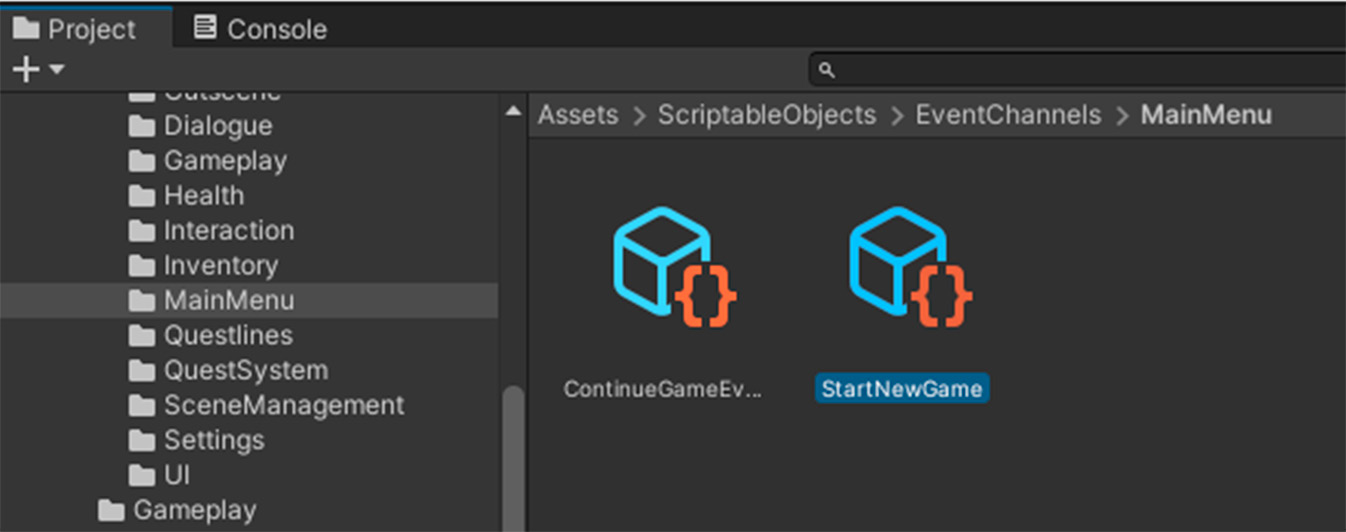
OnEventRaised.Invoke(); } } Once you create a ScriptableObject of type VoidEventChannelSO, any MonoBehaviour can listen for OnEventRaised. For example, we can make a StartNewGame ScriptableObject that is of type VoidEventChannelSO. Another object can invoke the
public RaiseEvent method to trigger the event.A ScriptableObject-based event, an example of an event channel
Another MonoBehaviour can reference the event channel ScriptableObject in the Inspector, then subscribe/unsubscribe to OnEventRaised.
This invokes StartNewGame as a response whenever the event channel calls OnEventRaised: public class StartGame : MonoBehaviour { [SerializeField] private VoidEventChannelSO m_onNewGameButton = default;
private void Start() {m_onNewGameButton.OnEventRaised += StartNewGame;
private void OnDestroy() {m_onNewGameButton.OnEventRaised -= StartNewGame;
private void StartNewGame() { // load level logic here… }

}
For more artist- or designer-friendly listening components, you could instead create a MonoBehaviour that doesn’t require any script setup. This VoidEventListener class doesn’t add extra functionality but has fields that are accessible in the Inspector:
public class VoidEventListener : MonoBehaviour {
[SerializeField] private VoidEventChannelSO m_channel = default;public UnityEvent OnEventRaised;private void OnEnable() {if (m_channel != null)
m_channel.OnEventRaised += Respond; }
private void OnDisable() {if (m_channel != null)
m_channel.OnEventRaised -= Respond; }
private void Respond() {if (OnEventRaised != null)
OnEventRaised.Invoke();
}
}
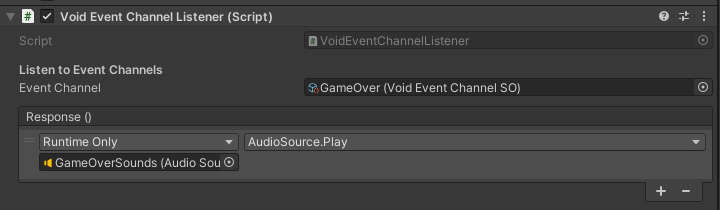
Simply add the VoidEventListener to a GameObject, then drag the event channel ScriptableObject into the _channel field in the Inspector. Create UnityActions on the OnRaisedEvent in order to respond to the event.
An Event Listener allows a nonprogrammer to set up event-driven actions.
Regardless of which component you choose to listen for events, the event channels provide a means of communicating between your objects at runtime. Did the player complete a task or score a point? Is the game over? An event can notify any GameObject in the scene that needs that information. Because they are assets at the project level, ScriptableObject-based events can then drive much of the infrastructure of your application. This is especially useful for sending messages between the different systems that underpin the game architecture.
Some common management systems include: —
Audio management: Many things in your game can trigger sounds. This system can play AudioClips or adjust the AudioMixer in response to application events.
Scene management: This system handles loading and unloading of Unity scenes and game levels.
UI management: This is responsible for menu screens before, during, and/or after gameplay.
Save Data management: This handles saving and loading game data, as well as settings to your file system.
These systems all specialize in different tasks, but they need to talk to one another. Events can form the glue that keeps them connected. Explore the accompanying sample project for more examples of how to implement your own ScriptableObject-based events.
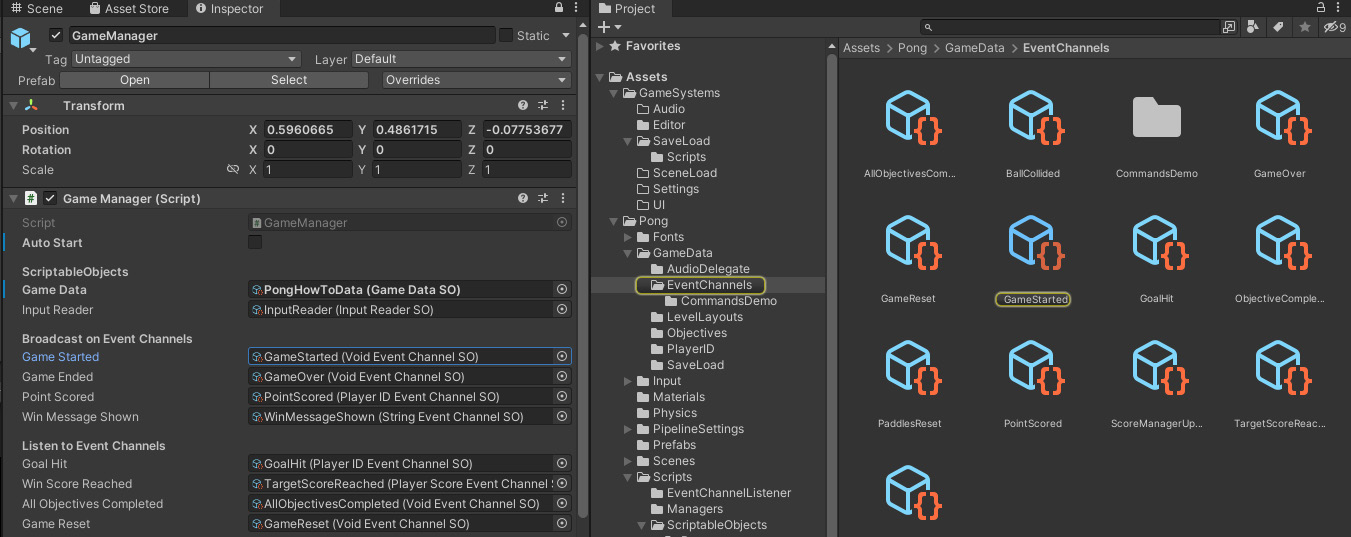
The sample project’s GameManager uses event channels.
Note that you can send different types of data with each event, using different event payloads. For example, the ScriptableObject-based events include IntEventChannelSO, a Vector2EventChannelSO, a VoidEventChannelsSO, and so on. The event used will depend on the context. Customize additional event types according to gameplay. For instance, a damage event may need to pass along who inflicted the damage and how much was done.
How you deploy these event channels is limited only by your creativity. In addition to the core systems above, events can often help join very different in-game systems so that they can interact: —
Cameras: These are used to add dramatic or cinematic effects, such as shaking or cutting to a different perspective.
Quests: These are tasks or objectives that the player must complete in order to progress through the game or receive a reward. Quests often involve a variety of gameplay elements, such as fetching items, defeating enemies, or solving puzzles.
Health: This important aspect of many games connects the player, enemies, and any objects or actions that can cause damage to the player.
Achievements: Like quests, these are special rewards that players can unlock by completing certain tasks or objectives within the game. Achievements can span different gameplay elements, such as reaching a certain level or accumulating a certain number of points.
These gameplay elements, in turn, will interact with other management systems, such as audio, UI, and save data, through the use of events. This approach promotes modularity and independence within each component of the architecture while still allowing for communication with other systems.
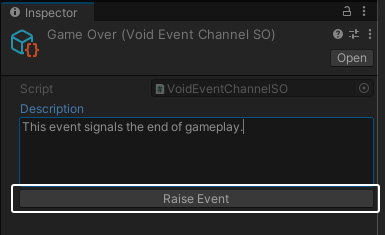
Debugging event channels A custom Editor or property drawer can create a “Raise Event” button in the Inspector. This can help you manually invoke the event for debugging. For example, here’s a basic Editor script that creates a custom Inspector button for the VoidEventChannelSO: [CustomEditor(typeof(VoidEventChannelSO))]
public class VoidEventChannelSOEditor : Editor {
    public override void OnInspectorGUI() {
        DrawDefaultInspector();
        VoidEventChannelSO eventChannel = (VoidEventChannelSO)target;
        if (GUILayout.Button("Raise Event")) { eventChannel.RaiseEvent(); }
    }
}
This creates a button that allows you to raise the event at will, making it easier to diagnose issues at runtime.
A custom Editor button can help test event channels.
With a little more work, you can make buttons for event channels that carry data as well. Reserve a field for a debug value in the event channel itself, then pass this to the Editor script. You can find examples of how to implement this in the SOAP or Unity Atoms projects. As you continue using event channels for object decoupling, consider developing debugging tools, such as keeping a record of all listeners for each event. The event channel class can have methods to subscribe and unsubscribe objects, making it easier to identify which events are causing specific behaviors during runtime.
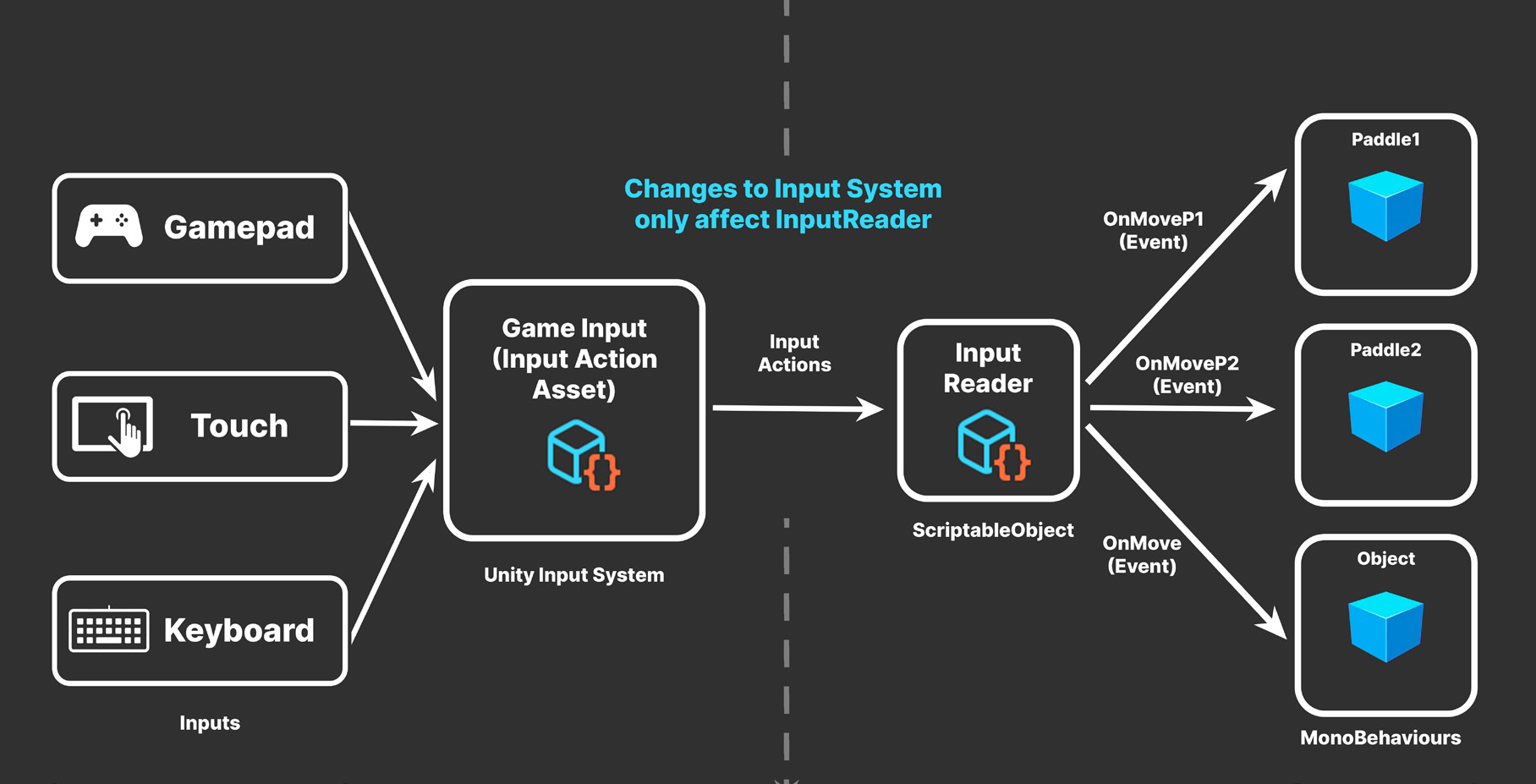
Example: InputReader Objects that listen for user input need a specialized type of event channel. Unity’s Input System uses InputActions to represent raw input data as logical concepts (e.g., jump, walk, etc.). Each InputAction, in turn, includes its own started, performed, and canceled events.
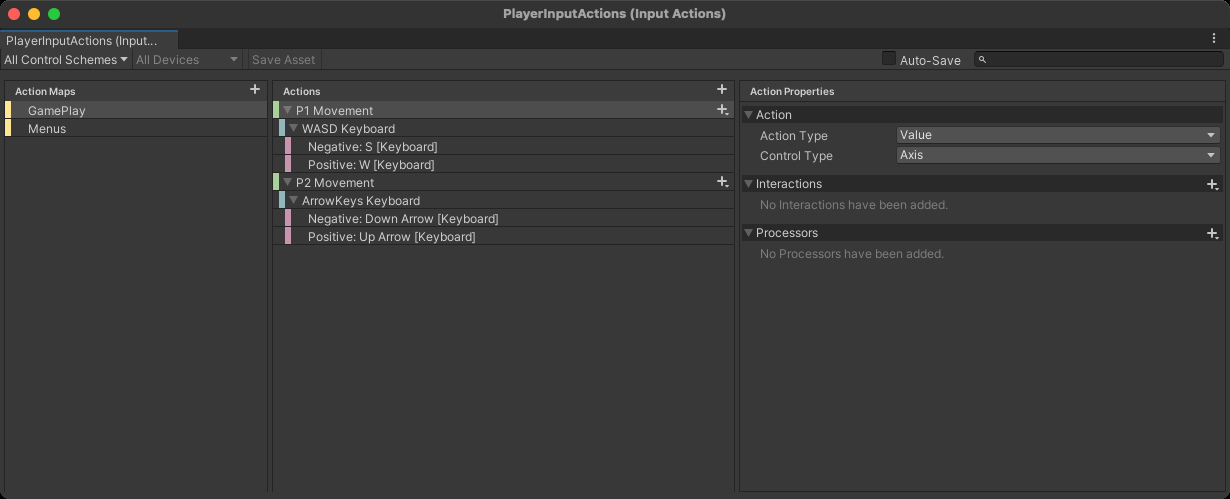
Setting up Actions and Action Maps in the Input System Editor
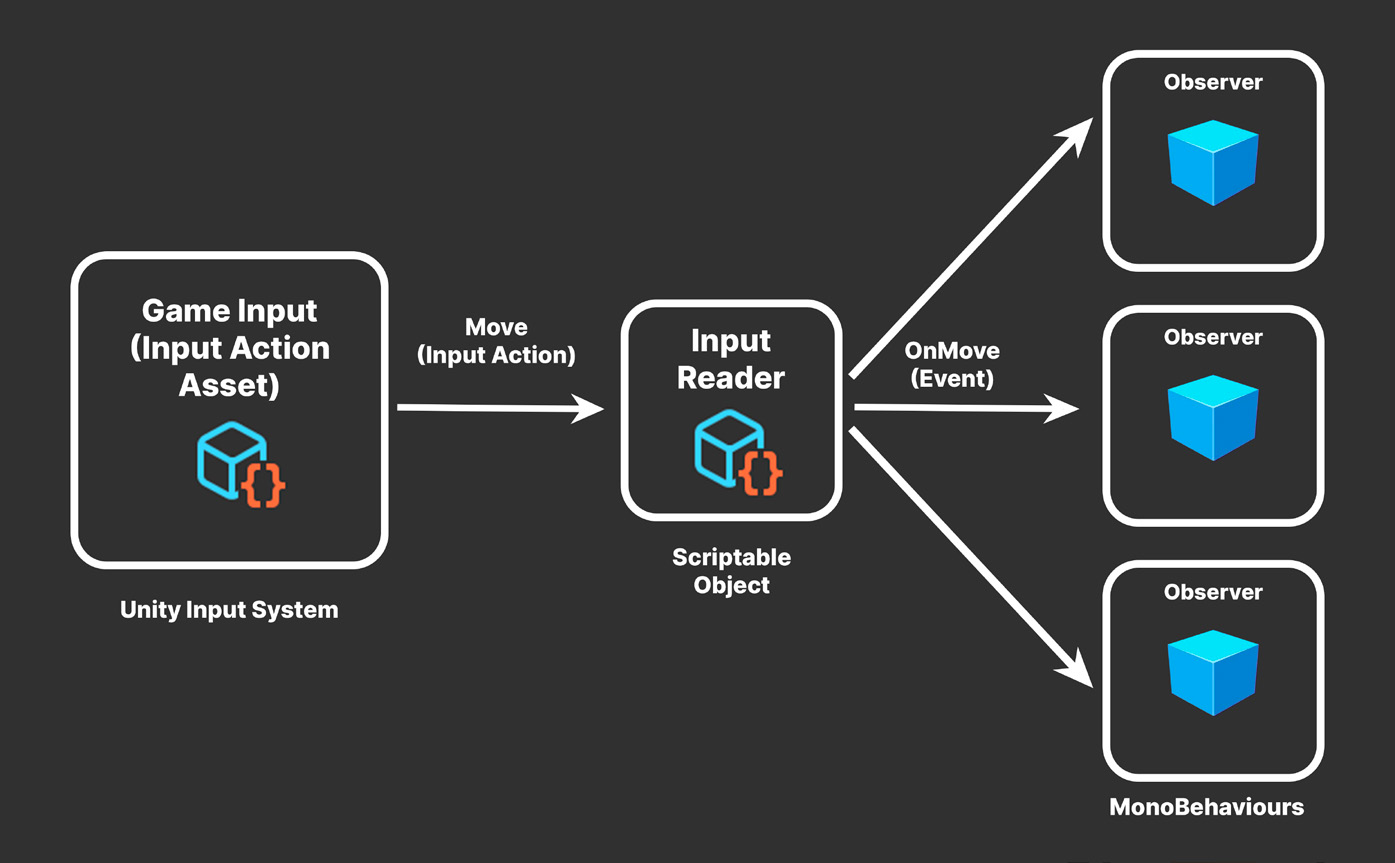
In order to decipher the InputAction bindings, you can create a special InputReader ScriptableObject. Again, this acts as an intermediary between the subject and observers. In this case, however, MonoBehaviours won’t raise the events explicitly. Instead, the Input System takes the place of the subject or broadcaster:
A ScriptableObject InputReader relays events from InputActions.
Here, we set up Actions and ActionMaps in the Input System. Each InputAction describes a separate axis of input and binds to the keyboard, gamepad, or whatever input device you like to use.
Rather than directly subscribing to the InputActions themselves, the paddle controllers listen for the OnMoveP1.performed event and OnMoveP2.performed events, respectively.
The InputReader insulates objects from direct dependency on the inputs.
The resulting InputReader standardizes how your GameObjects will process gamepad or keyboard actions. Any GameObject that needs input: —
Maintains a reference to the InputReader ScriptableObject
Subscribes to the relevant events and connects its event-handling methods
While this pattern may be overkill for a smaller game, we demonstrate this to make the concept easier to digest. The benefits won’t be apparent until your project grows and you add many more components. Decoupling the inputs from the GameObjects consuming them gives added flexibility and reusability. If you have to modify the InputActions during development, you only need to maintain the InputReader itself. The listening objects are unaffected if the events don’t need to change. Thus, maintaining the connection from input to observers becomes less work – especially when you have a lot of observers.
static events You can choose to use static events to ease the burden of locating the ScriptableObject on the listening objects. For example, a MonoBehaviour could subscribe to the InputReader’s static MoveP1Event and MoveP2Event events in its OnEnable method: InputReader.MoveP1Event += OnMoveP1;
InputReader.MoveP2Event += OnMoveP2;
When using static events, be extra diligent when managing subscriptions. Don’t forget to unsubscribe in OnDisable: InputReader.MoveP1Event -= OnMoveP1;
InputReader.MoveP2Event -= OnMoveP2;
Static events will always be reachable and won’t be collected by the garbage collector if they have active subscribers. Any dangling subscribers will prevent their cleanup for the duration of your application. Static events, however, aren’t serializable. If you want to work interactively in the Editor, choose non-static events and make sure you reference the appropriate ScriptableObject in the Inspector.