Приложение: тестирование и отладка
Appendix: Testing and debugging
Debugging is like being a detective in a crime movie where you are also the murderer. — Filipe Fortes
Automated testing is an effective tool for improving the quality of your code and reducing the time spent on bug fixes. Test-driven development (TDD) is a development methodology where you create unit tests while you develop the software. In fact, you’ll routinely write each test case before making a specific feature function. As you develop the software, you’ll repeatedly run it against this whole test suite of automated processes. This is in stark contrast to writing the software first and building the test cases later. In TDD, coding, testing, and refactoring are interwoven.
Here’s the basic idea, presented in Kent Beck’s Test-Driven Development by Example: 1.
Add a single unit test: This describes one new feature you want to add to your application; spec out what needs to be done, either from your team or your user base.
Run the test: The test should fail since you haven’t implemented the new feature into your program. Additionally, this verifies whether or not the test itself is valid. It should not always pass by default.
Write the simplest code that passes the new test: Write just enough logic to make it pass the new unit test. This doesn’t have to be clean code at this point. It can use inelegant structure, hard-coded magic numbers, and so on, as long as it passes the unit test.
Confirm that all tests pass: Run the full automated test suite. Your previous unit tests should all pass. The new code meets your new testing requirements and the old requirements as well. If not, modify your new code – and only your new code – until all tests pass.
Refactor: Go back and clean up your new code. Use your style guide and make sure everything conforms. Move the code, so it is logically organized. Keep similar classes and methods together, etc. Remove duplicate code, and rename any identifiers to minimize the need for comments. Split methods or classes that are too long. Run the automated testing suite after each refactor.
Repeat: Go through this process every time you add a new feature. Each step is a small, incremental change. Make frequent commits under source control. When debugging, you only have to examine a small amount of new code for each unit test. This simplifies the scope of your work. If all else fails, roll back to the previous commit and begin again.
That’s the gist of it. If you develop software using this methodology, you tend to follow the KISS principle by necessity. Add one feature at a time, testing as you go. Refactor continuously with each test, so cleaning your code becomes a constant ritual. Like most of the tenets of clean code, TDD takes extra work in the short-term but often results in the improvement of long-term maintenance and readability.
Unity Test Framework The Unity Test Framework (UTF), formerly known as the Unity Test Runner, provides a standard test framework for Unity developers. UTF uses NUnit, an open-source testing library for .NET languages. The Unity Test Framework can perform unit tests in the Editor (either using Edit Mode or Play Mode) and on target platforms (e.g., Standalone, Android, iOS). Install UTF via the Package Manager. The documentation will help you get started.
The general workflow of the Unity Test Framework is to: —
Create a new test suite, called a Test Assembly: The Test Runner UI simplifies this process and creates a folder in your project.
Create a test: The Test Runner UI helps you manage the C# scripts that you will create as unit tests. Select a Test Assembly folder and navigate to Assets > Create > Testing > C# Test Script. Edit this script and add logic for your test.
Run a test: Use the Test Runner UI to run all of the unit tests or run a selected one. Using JetBrains Rider, you can also run UTF directly from the script editor.
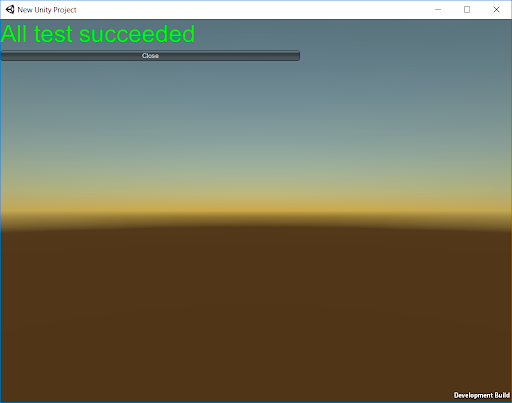
Add Play mode tests in the Editor or as standalone: The default Test Assembly works in Edit Mode. If you want unit tests to work at runtime, create a separate assembly in Play Mode. Configure this for your standalone build as well (with the results of the test displayed in the Editor).
The Test Framework displays the results of a standalone build within the Editor.
See these resources for more information on UTF and general testing and debugging tips for your Unity projects: —
Unity Test Framework microsite
Run automated tests for your games with Unity Test Framework
How to debug game code with Roslyn Analyzers
Testing and quality assurance tips for Unity projects
Speed up debugging with Microsoft Visual Studio Code
How to debug your code with Microsoft Visual Studio