Приложение: шаблоны скриптов
Приложение: шаблоны скриптов
Разговоры ничего не стоят. Покажите мне код. — Линус Торвальдс, создатель Linux и Git
Шаблоны скриптов — это готовые фрагменты кода, которые Unity использует при создании новых файлов C#, например скриптов MonoBehaviour или ScriptableObject (Assets > Create > C# Script).
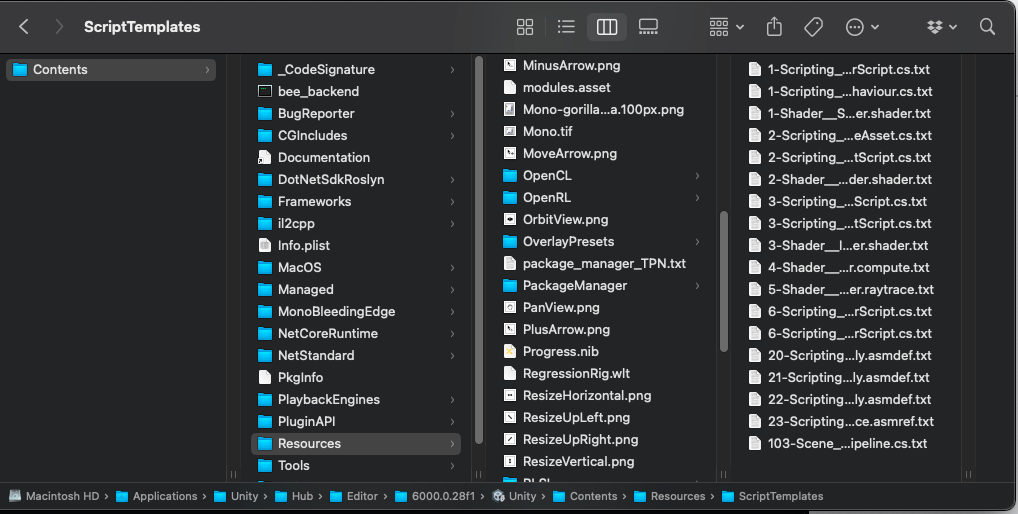
Определив правила форматирования в руководстве по стилю, настройте шаблоны скриптов в соответствии с ними. Это поможет поддерживать единообразие кодовой базы и сократит объем повторяющейся работы. Эти файлы находятся по следующим путям: Windows: C:\Program Files\Unity\Hub\Editor\[UnityVersion]\Editor\Data\Resources\ScriptTemplates Mac: /Applications/Unity/Hub/Editor/[UnityVersion]/Unity.app/Contents/Resources/ScriptTemplates
В macOS откройте содержимое пакета Unity.app, чтобы увидеть подкаталог Resources. В этом каталоге находятся стандартные шаблоны, например: 1-Scripting__MonoBehaviour Script-NewMonoBehaviourScript.cs.txt 2-Scripting__ScriptableObject Script-NewScriptableObjectScript.cs.txt
Когда вы создаете в окне Project новый скриптовый ассет через меню Create, Unity использует один из этих шаблонов.
Если открыть файл 1-Scripting__MonoBehaviour Script-NewMonoBehaviourScript.cs.txt в текстовом редакторе, вы увидите следующее:
using System.Collections;
using System.Collections.Generic;
using UnityEngine;
public class #SCRIPTNAME# : MonoBehaviour {
    // Start вызывается перед обновлением первого кадра

    void Start() { #NOTRIM# }
    // Update вызывается один раз за кадр

    void Update() { #NOTRIM# }
}
Обратите внимание на ключевые слова: — #SCRIPTNAME#: указанное вами имя скрипта. Если его не изменить, будет использовано стандартное имя, например NewBehaviourScript. — #NOTRIM# сохраняет пробельные символы и гарантирует наличие пустой строки между фигурными скобками. Шаблоны скриптов можно настраивать: например, добавить пространство имен или удалить стандартный метод Update. Изменение шаблона экономит несколько действий при каждом создании скриптового ассета. Имя файла шаблона скрипта строится по следующей схеме: PriorityNumber-MenuPath-DefaultName.FileExtension.txt Разные части имени разделяет символ дефиса (-): — PriorityNumber определяет положение скрипта в меню Create. Чем меньше число, тем выше приоритет. — MenuPath определяет расположение файла в меню Create. Категории можно создавать с помощью двойного подчеркивания (__). Например, CustomScript__Misc__ScriptableObject создает пункт ScriptableObject в меню Create > CustomScript > Misc.
— DefaultName — стандартное имя ассета, используемое, если вы не указали другое. — FileExtension — расширение файла, добавляемое к имени ассета. Обратите внимание: после FileExtension в имени каждого шаблона скрипта также добавляется суффикс .txt.
Чтобы применить шаблон скрипта только к определенному проекту Unity, скопируйте всю папку ScriptTemplates непосредственно в каталог Assets проекта: /Assets/ScriptTemplates. При необходимости можно скопировать лишь те разделы, которые вы собираетесь редактировать. Затем создайте новые шаблоны скриптов или измените исходные по своему усмотрению. Удалите из проекта шаблоны, которые не планируете изменять. Можно также скопировать только нужные файлы. Исходные шаблоны скриптов можно изменить и в ресурсах приложения, но будьте осторожны: изменения затронут все проекты, использующие эту версию Unity. Подробнее о настройке шаблонов скриптов см. в этой статье службы поддержки. Дополнительные примеры также находятся в приложенном проекте.
Appendix: Script templates
Talk is cheap. Show me the code. — Linus Torvalds, creator of Linux and Git
Script templates are predefined code snippets that are used when generating new C# files like monobehaviour or Scriptable Objects in Unity (e.g., via Assets > Create > C# Script). Once you establish formatting rules for your style guide, you can thus configure your script templates to help ensure consistency to your guidelines in your codebase and help reduce some repetitive work. The files can be found here: Windows: C:\Program Files\Unity\Hub\Editor\[UnityVersion]\Editor\Data\Resources\ScriptTemplates Mac: /Applications/Unity/Hub/Editor/[UnityVersion]/Unity.app/Contents/Resources/ScriptTemplates
On macOS, reveal the Unity.app package contents to show the Resources subdirectory. Inside this path, you’ll see the default templates such as: 1-Scripting__MonoBehaviour Script-NewMonoBehaviourScript.cs.txt 2-Scripting__ScriptableObject Script-NewScriptableObjectScript.cs.txt
Whenever you make a new scripted asset in the Project window from the Create menu, Unity uses one of these templates.
If you open the file named 1-Scripting__MonoBehaviour ScriptNewMonoBehaviourScript.cs.txt with a text editor, you will see the following:
using System.Collections;
using System.Collections.Generic;
using UnityEngine;
public class #SCRIPTNAME# : MonoBehaviour {
    // Start is called before the first frame update

    void Start() { #NOTRIM# }
    // Update is called once per frame

    void Update() { #NOTRIM# }
}
Note the keywords: —
#SCRIPTNAME#: This is the name you’ve specified for the script. If you don’t customize the name, it uses the default name, e.g., NewBehaviourScript.
#NOTRIM#: This guarantees whitespace, making sure one line appears between the curly braces.
Script templates are customizable. For example, you can add a namespace or remove the default Update method. Modifying the template can save you a few keystrokes every time you create one of these scripted assets. The script template filename follows this pattern: PriorityNumber–MenuPath–DefaultName.FileExtension.txt A dash (-) character separates the different parts of the name: —
PriorityNumber is the order that the script appears in, in the Create menu. Lower numbers have higher priority.
MenuPath allows you to customize how the file appears in the Create menu. You can create categories with the double underscore(__). For example, “CustomScript__Misc__ScriptableObject” creates the menu item ScriptableObject under the Create > CustomScript > Misc menu.
DefaultName is the default name given to the asset if you don’t specify one.
FileExtension is the file extension appended to the asset name.
Also, note that each script template also has a .txt appended to the FileExtension. If you want to apply a script template to a specific Unity project, copy and paste the entire ScriptTemplates folder directly under the project’s Assets: /Assets/ScriptTemplates. Or, you can copy just the sections that you’re editing, if you prefer. Next, create new script templates or modify the originals to fit your preferences. Delete any script templates from the project if you don’t plan on changing them. You can also just copy the files you like to use. You can also change the original script templates in the application resources but exercise caution. That affects all projects using that version of Unity. See this support article for more information about customizing your script templates. Also, check the attached project for a few additional script template examples.